
What is the Pipeline screen showing me?
Pipeline is the second Outreach screen. It lays everyone found across columns, one per stage. Open anyone to see their history, and pause or remove one person if they are not right.
Updated 29 September 2026
Read the coloured strip first
The strip under the heading is everyone you have in one line, each colour sized by how many sit at that stage. The columns below are the same people by name.
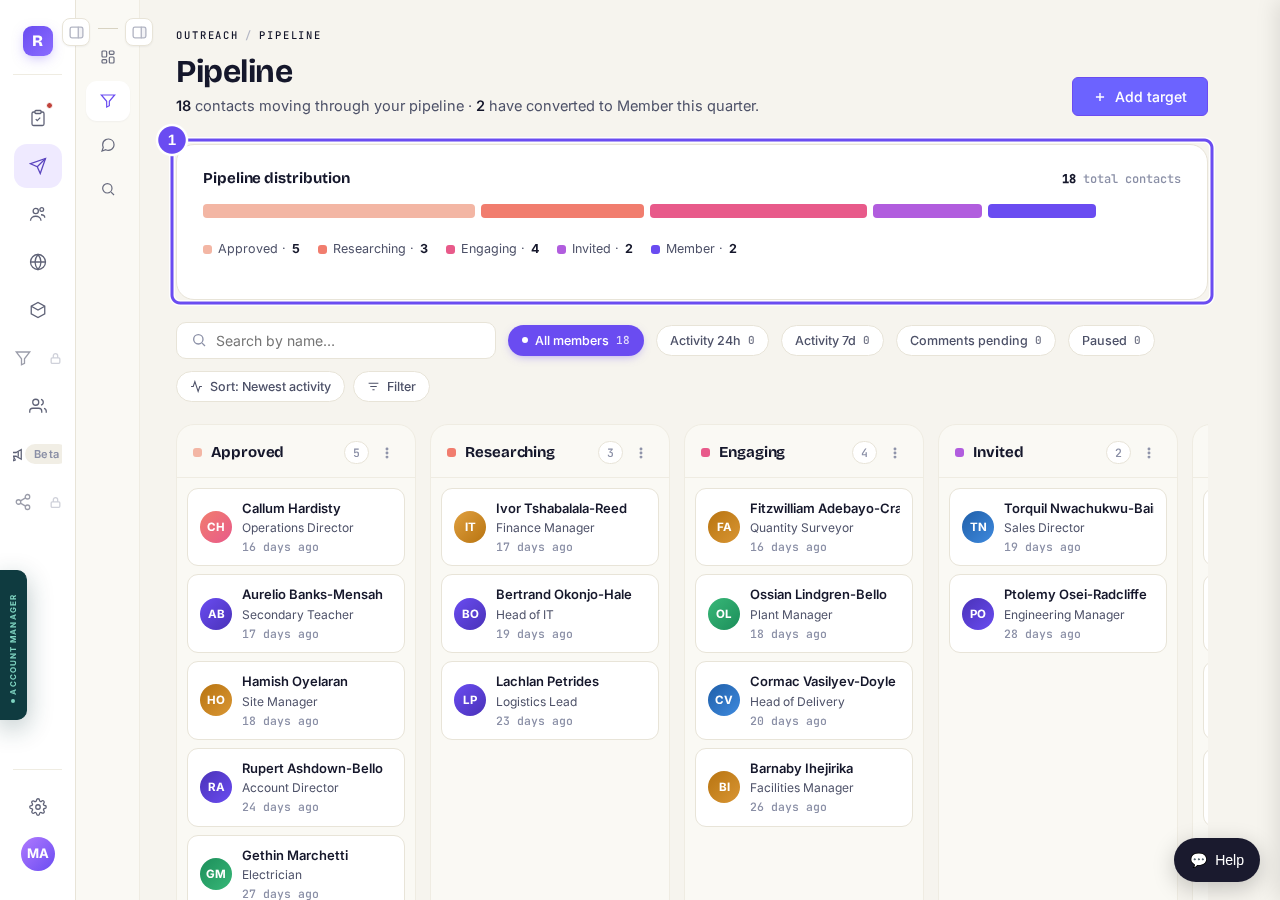
Everyone you have, in one line, coloured by stage.
Take me thereRead the columns left to right
Approved: found and checked, nothing done yet. Researching: we are looking for a recent post of theirs. Engaging: we found one, liked it from your account, and a comment draft is waiting for you. Invited: your connection request has been sent. Member: they accepted. People move over weeks, not hours. Every column explained.
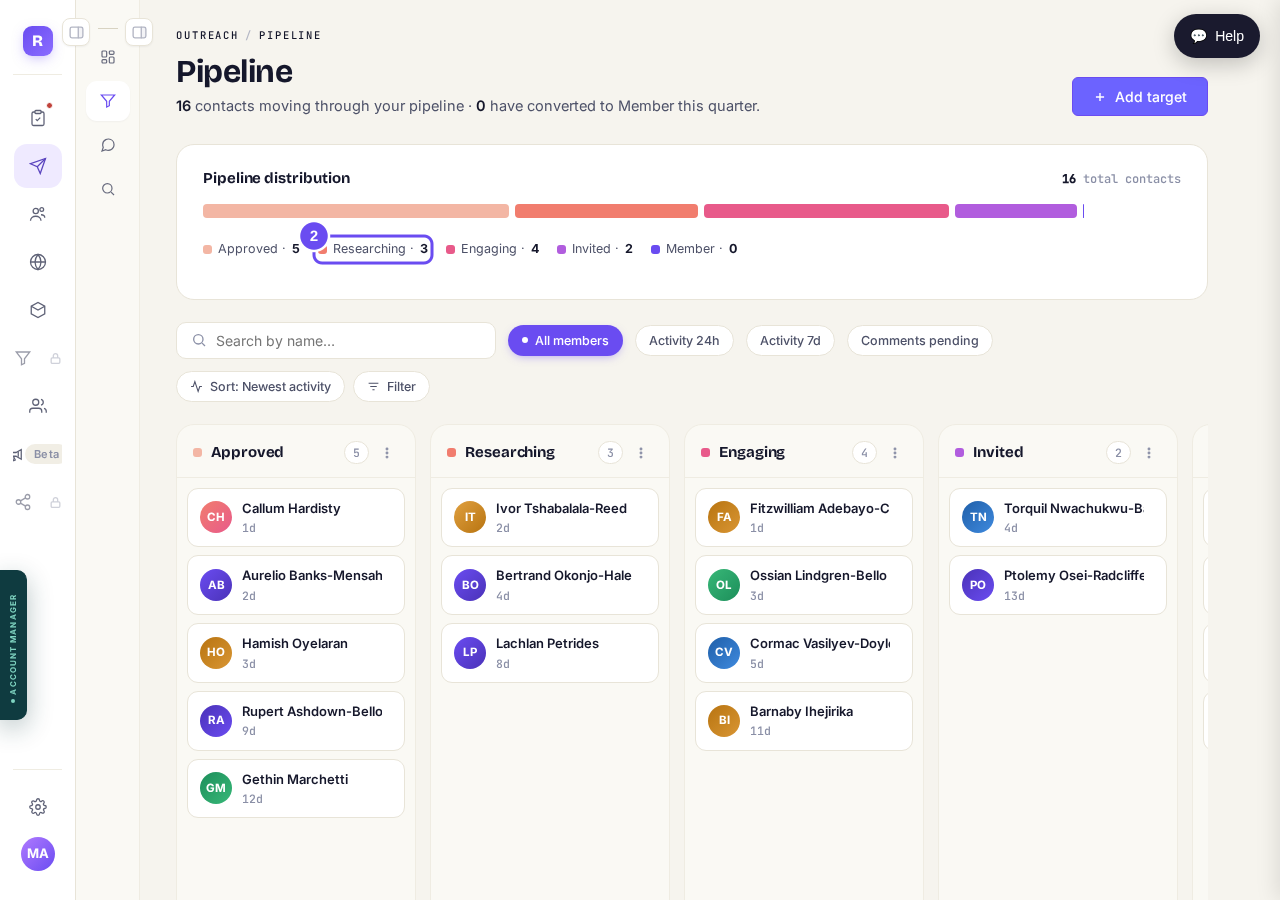
Approved, Researching, Engaging, Invited, Member.
Narrow it with the five buttons
All members shows everyone. Activity 24h and 7d keep only people active in that window. Comments pending leaves only people waiting on your yes. Paused shows anyone you have paused. To find one person, type their name in the Search by name box beside the buttons.
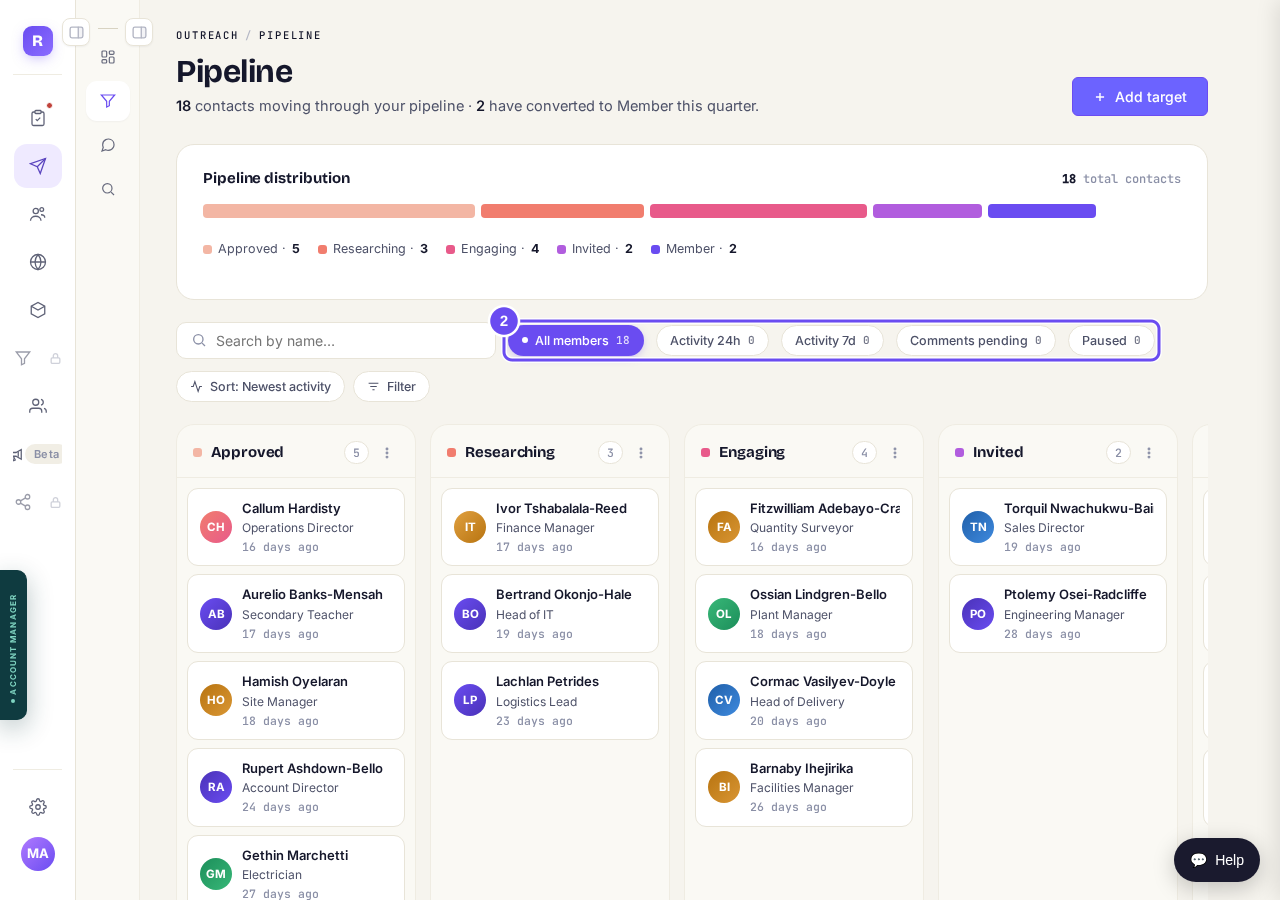
Five buttons, each with its count. Search by name sits beside them.
Hover for a quick look
Rest the pointer on a tile and a small card says what happens next with them, and where we know it, where they came from. Nothing changes until you click.
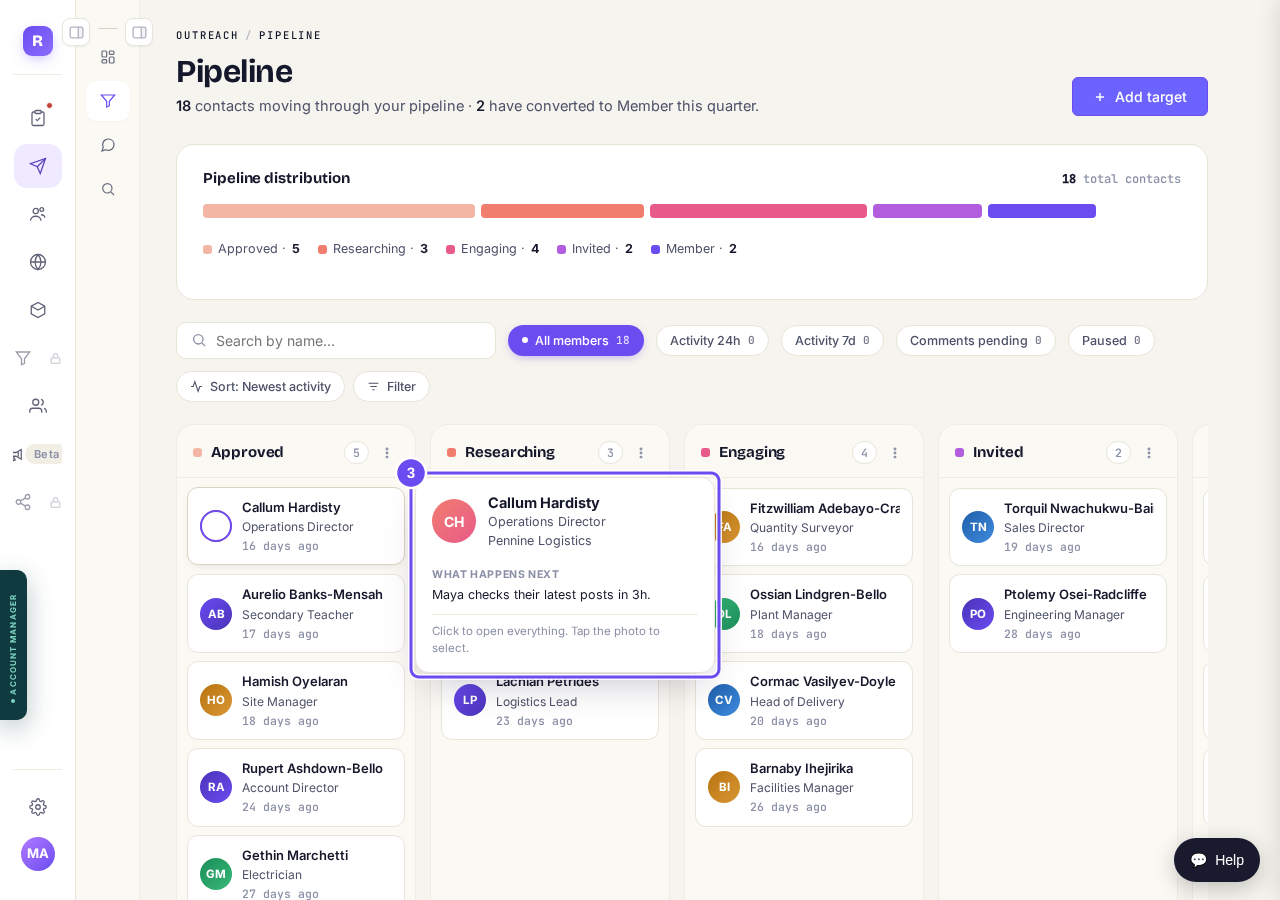
What happens next with this person, without opening anything.
Click to open their card
Click a tile and their card opens over the board: who they are, a link to their LinkedIn, and Activity history, newest first. Pause and Remove from funnel sit above the history.
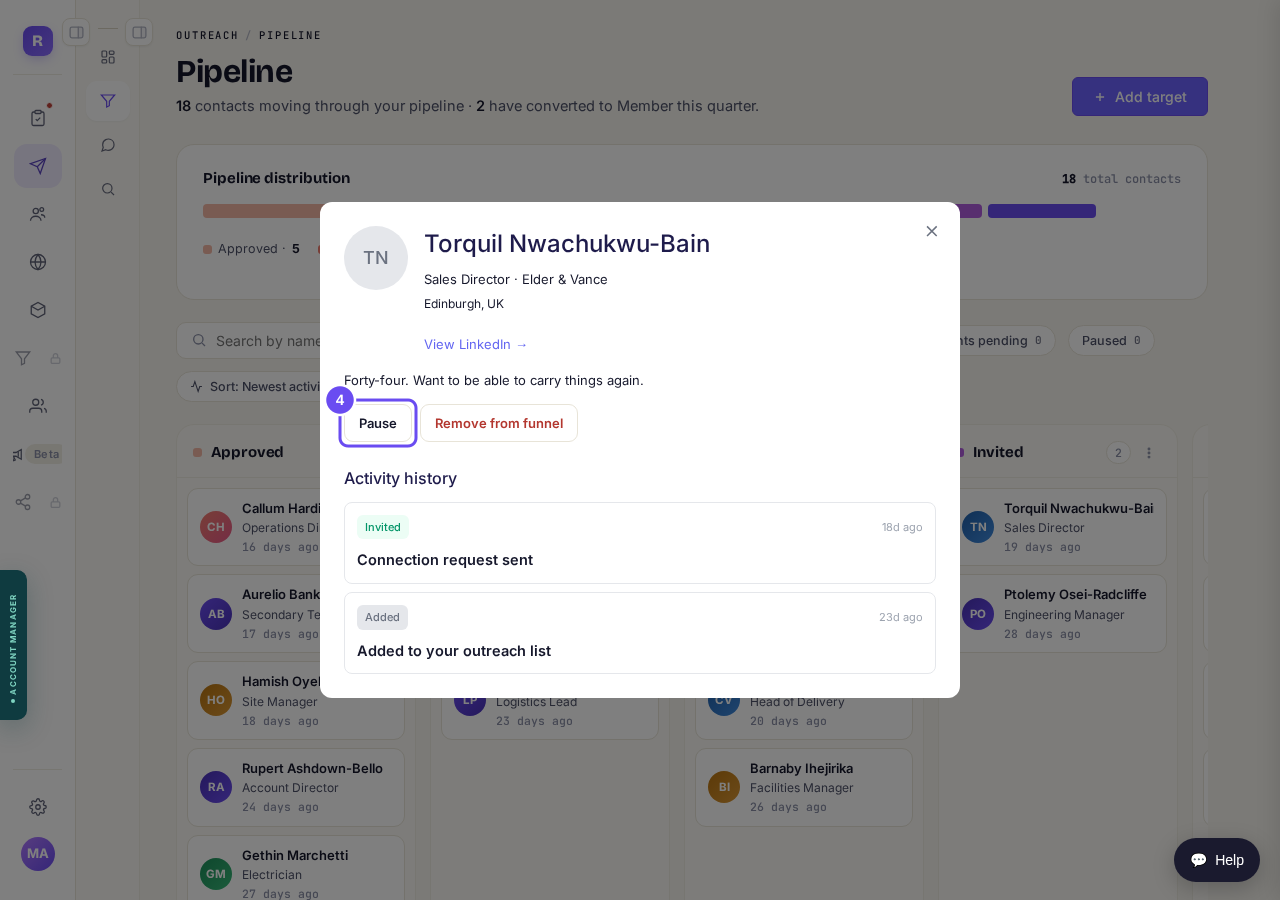
Everything that has happened with them, and the two buttons that act.
Pause them if the timing is wrong
Pause asks nothing. A band says nothing will happen with them until you resume, and their invitation countdown is frozen where it was. Press Resume to carry on from the same place.
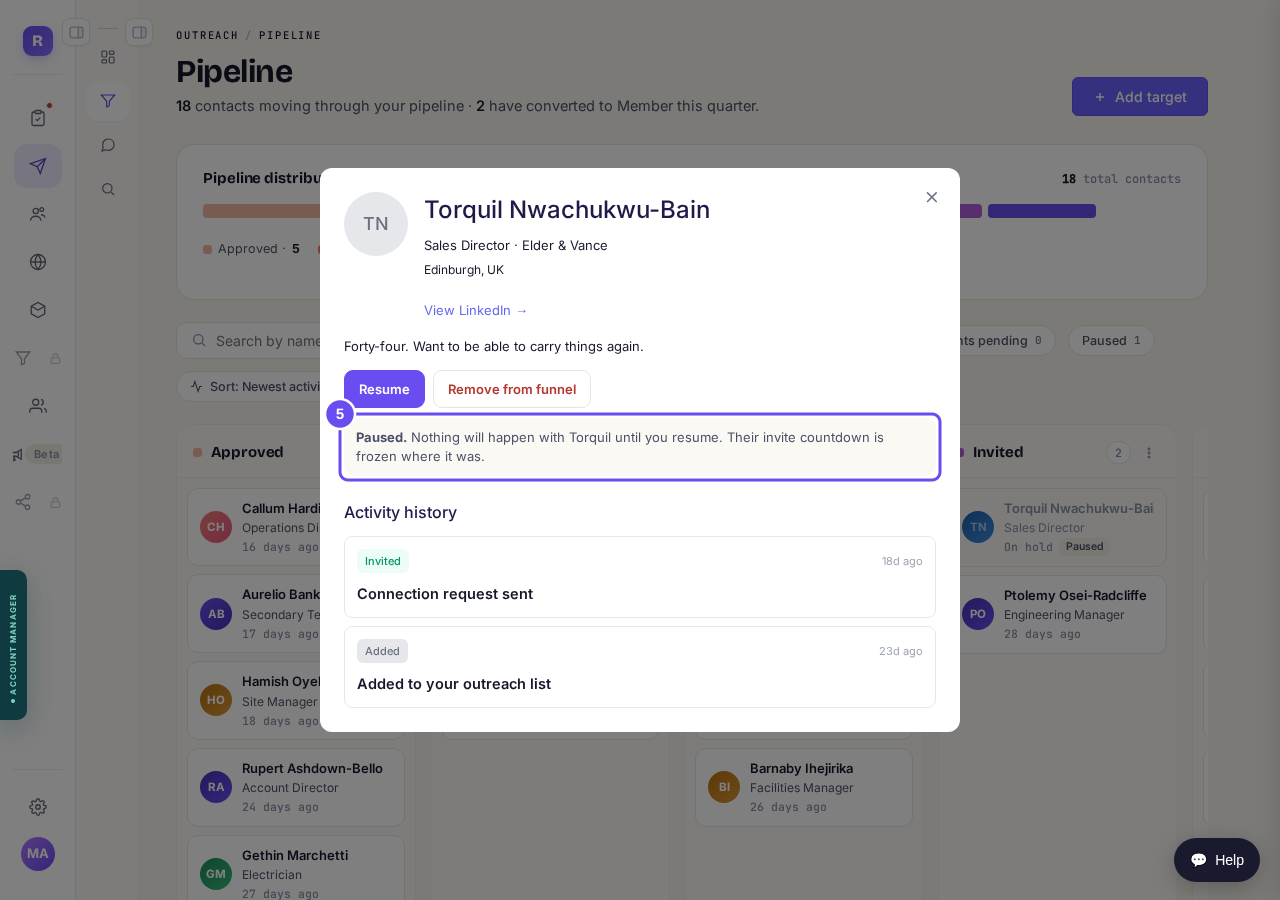
Paused. Nothing happens with them until you press Resume.
Remove them if they are not your person
Remove from funnel asks first, and says what it does. Press Cancel if you are not sure. Removed people go to the folded Removed column at the far right, where each one has a Restore link.
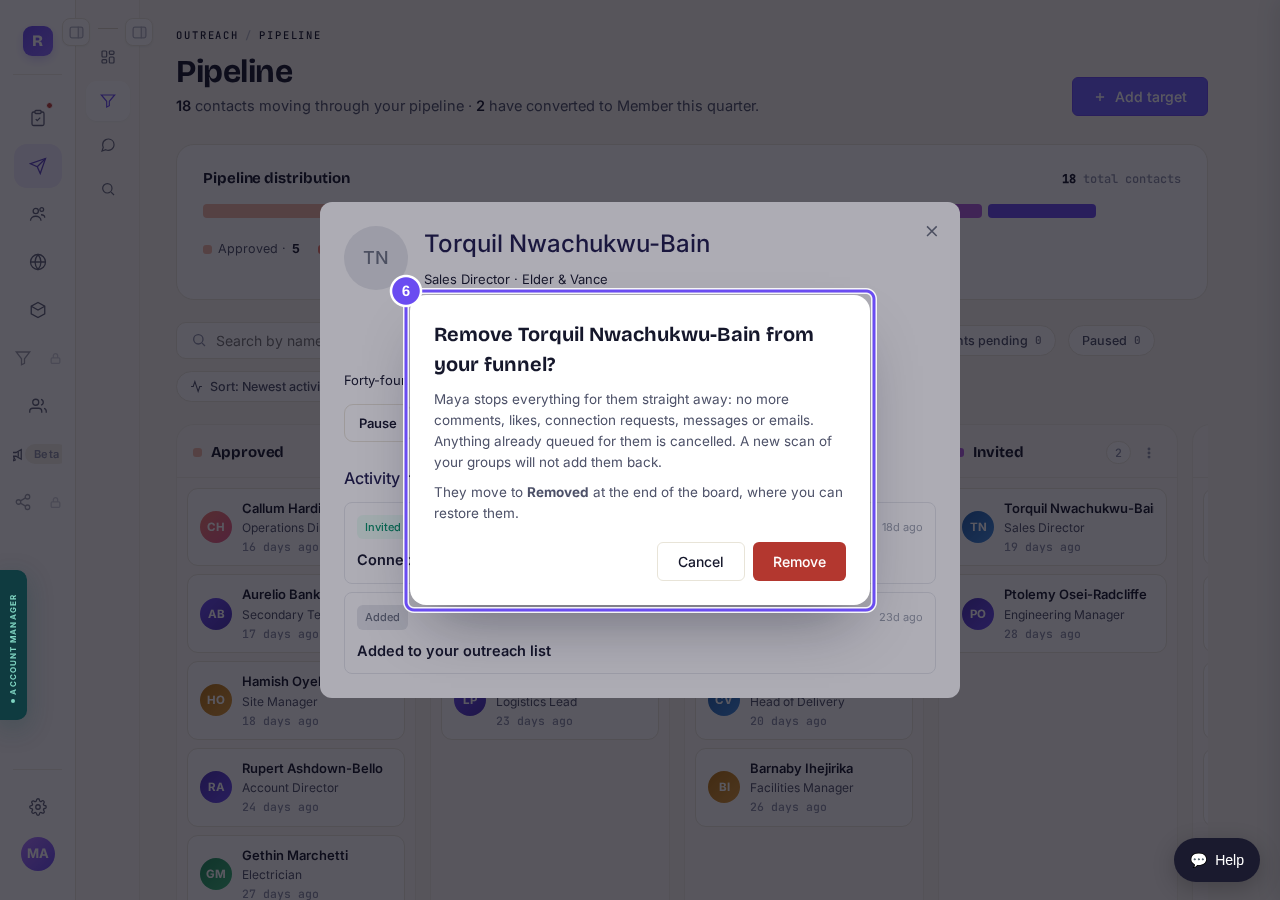
It asks before anything happens.
Tap photos to do several at once
Tap a person's photo, not their name, to tick them. A bar along the bottom counts how many are ticked, with Pause, Remove from funnel and Clear, so you can do several at once.
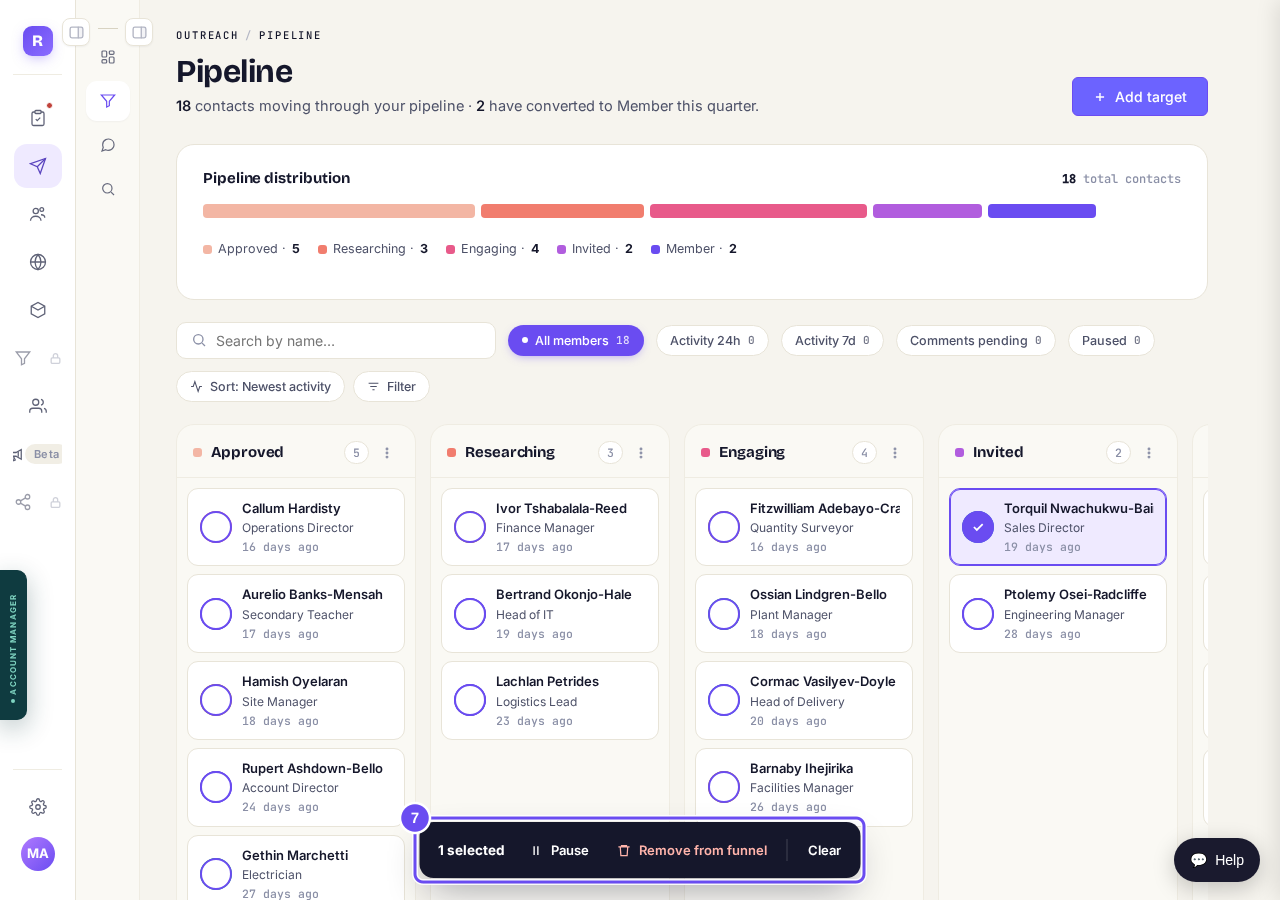
Tick by the photo. The bar at the bottom acts on all of them.
Why has my outreach stopped, and how do I start it again?
Related articles
Can I use Outreach on Instagram or X?
Not yet. Today Outreach works on LinkedIn only, through your own account. Instagram and X are coming soon, and nothing you set up now is wasted.
Do my new connections get a welcome email automatically?
Yes. If you use Outreach, every new connection gets a welcome email by itself, as soon as we have their email address. The LinkedIn welcome message is the one that waits for your go-ahead. One screen shows you both, in about two minutes.
How does Outreach turn strangers into community members?
Outreach finds people who have recently shown an interest in the problem you solve, gets your name in front of them on LinkedIn, and brings the ones who say yes into your community. Most of it runs by itself. Your part is a few minutes a day approving comments, and then making new members feel welcome.