
Who can see my community, and can I keep it private?
Your community has one address you share, and a separate setting for how much a stranger who follows it can read.
Updated 27 September 2026
Find the link under Public address
Open Settings, then Community: it is at the top. Anyone holding it can reach your community. It fills in by itself once your community is live. Just signed up? Press the link in our email first.
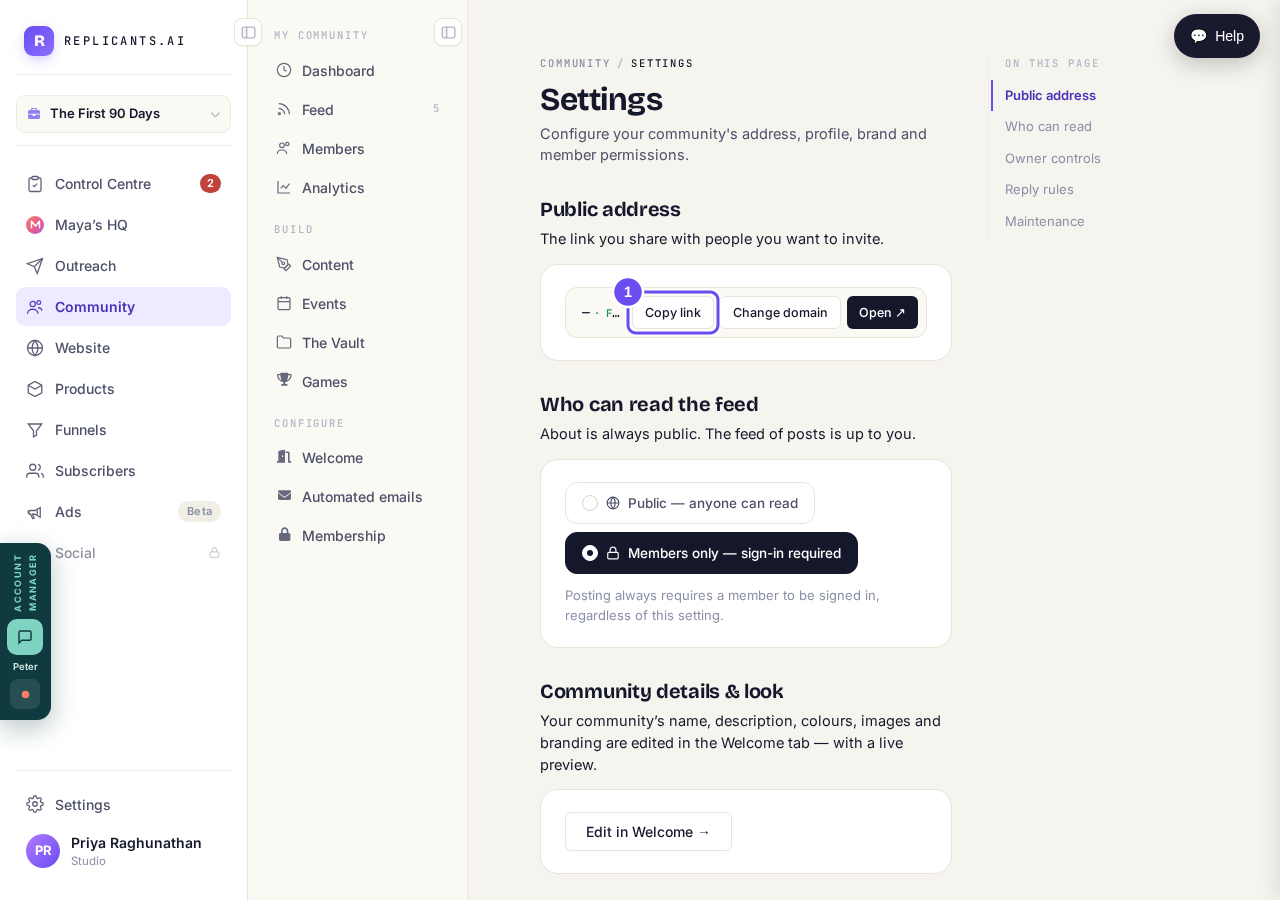
One link, and everyone you invite gets this one.
Take me therePick Public or Members only
Public means anyone with the link reads the posts without signing in. Members only means they sign in first and see nothing until they do. Your About page stays public either way, and posting always needs a sign-in.
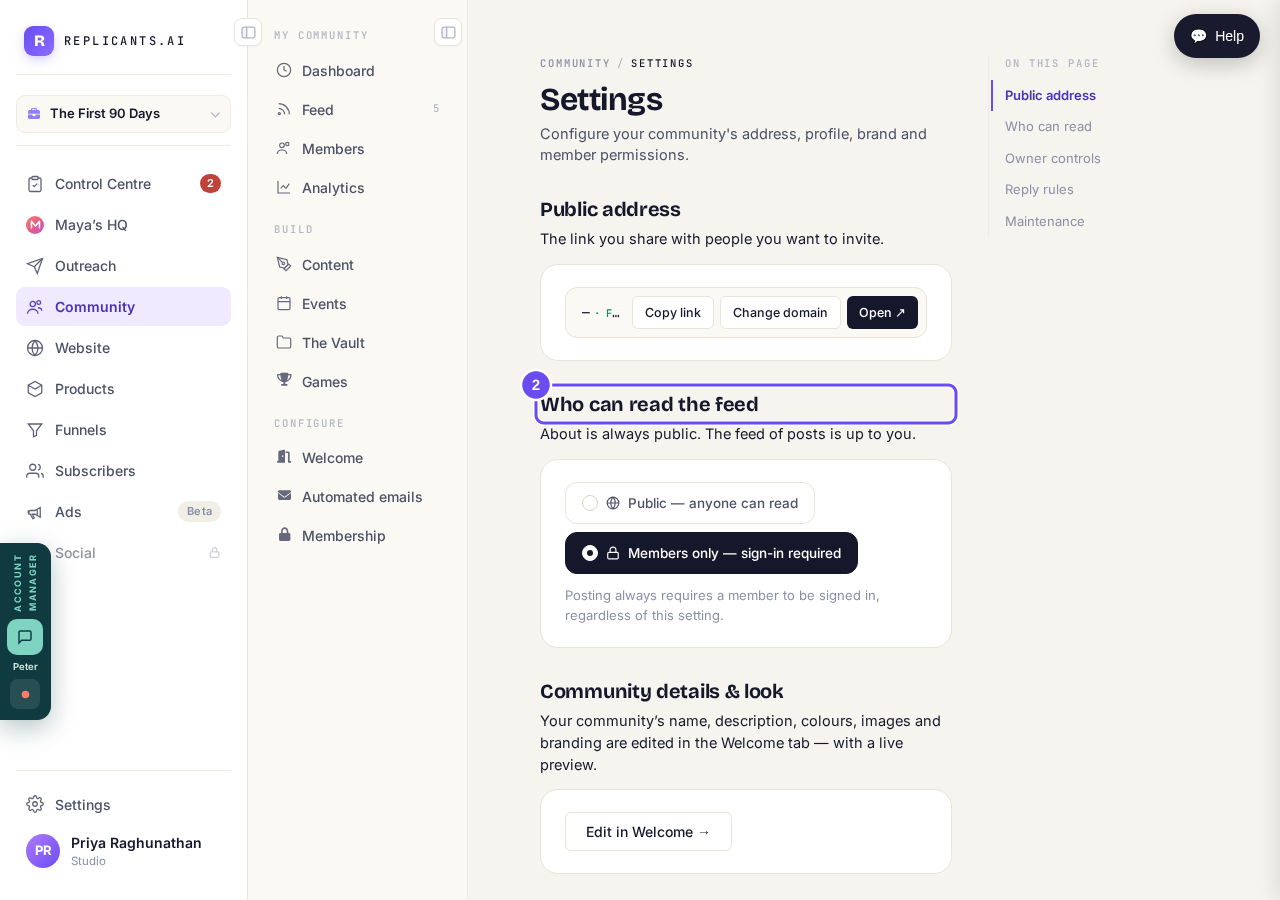
Public feed, or members only. About stays public either way.
Take me thereRead the small print under Anti-poaching
Under Owner controls, three settings: member-to-member messages, browsing the member list, and whether people join on the link alone. Only the first works today. The other two carry a line saying they'll work when the rest of that feature ships.
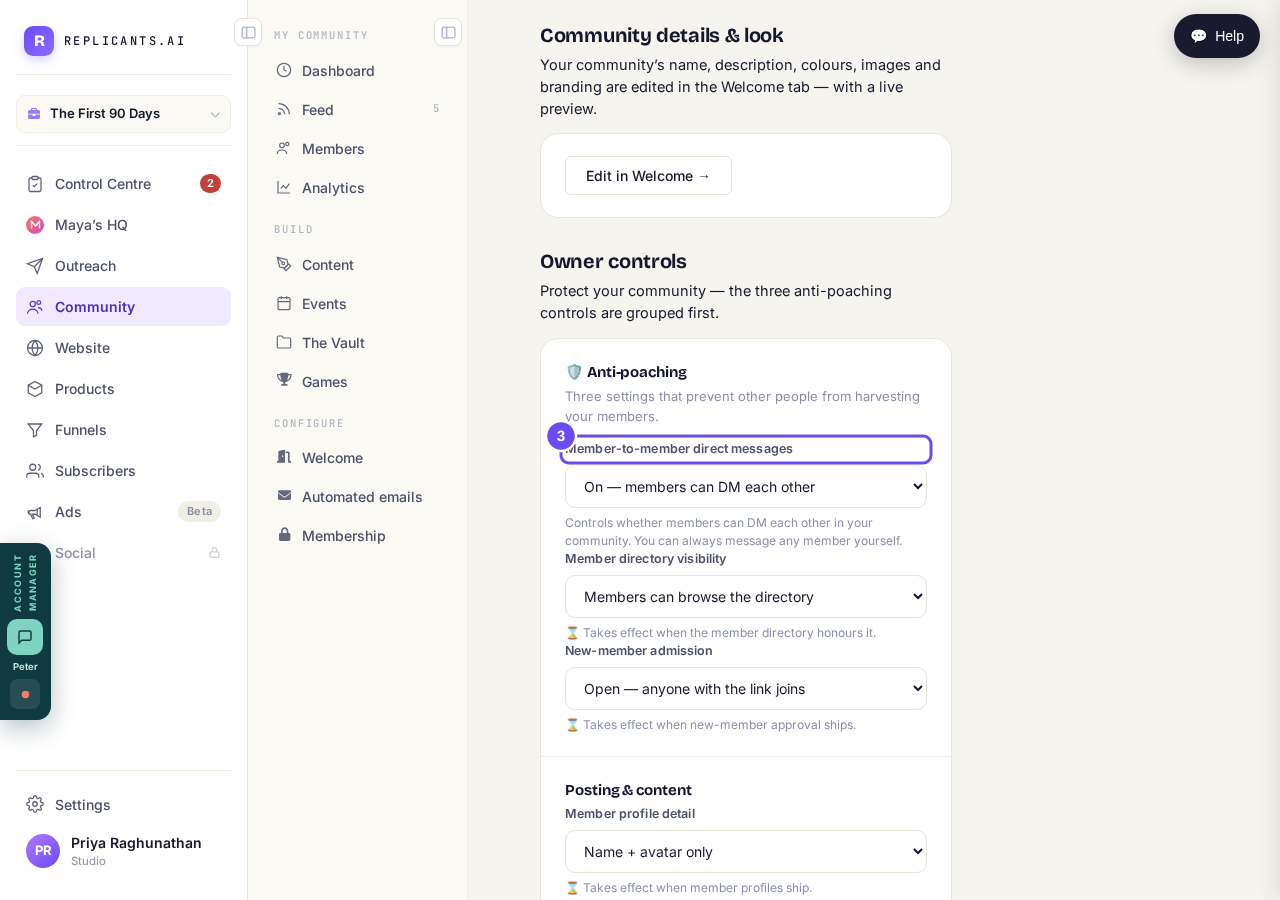
Three settings. Read the small print: only direct messages is in effect today.
Take me there
Where is my community link, and how do I share it?
Related articles
Can I approve new members before they get into my community?
Yes. Switch on approval and anyone who asks to join waits in a Requests list in Members until you let them in, the way a private LinkedIn or Facebook group works. People you invite, and people who pay, still go straight in. About five minutes to set up.
Can I change a member's post before I approve it?
No. A post waiting for your approval can only be approved or rejected, so you cannot change a member's words. If a few words need changing, approve it and add a comment, or message the member and reject it.
Can I check comments before they go up?
Turn on comment approval and every member comment waits for you. It's a separate switch from the one for posts.