
How do I turn a community post into an article on my website?
Your best community posts can live on your website as articles: on your Vault page, and in your home page's blog section if your site's design has one. You pick which posts go there, and the picture on each card.
Updated 10 October 2026
Open Website
Your websites are listed here. On a phone, press the menu button at the top right first.
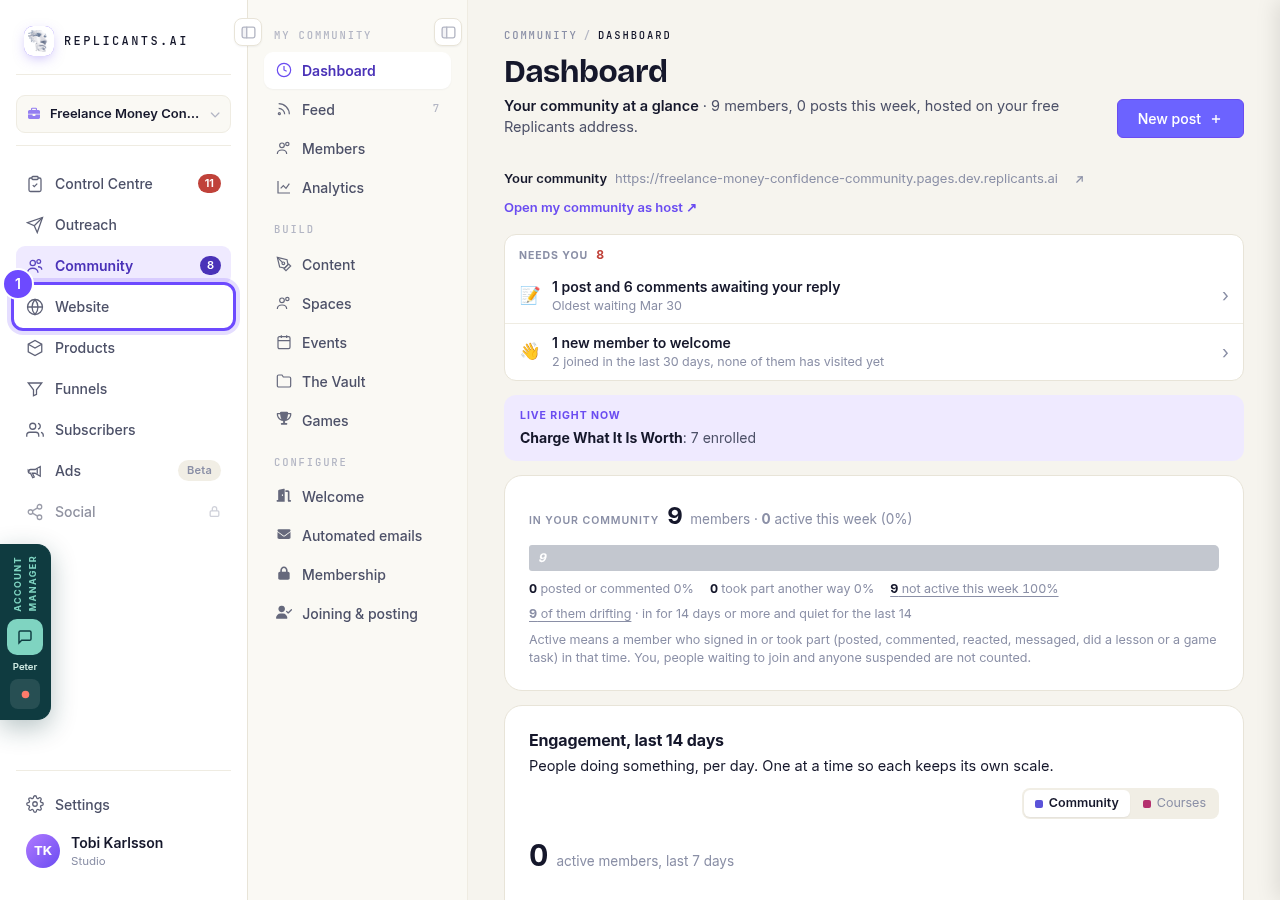
Press **Website** in the main menu.
Open WebsiteManage your site
This opens everything you can change on your website.
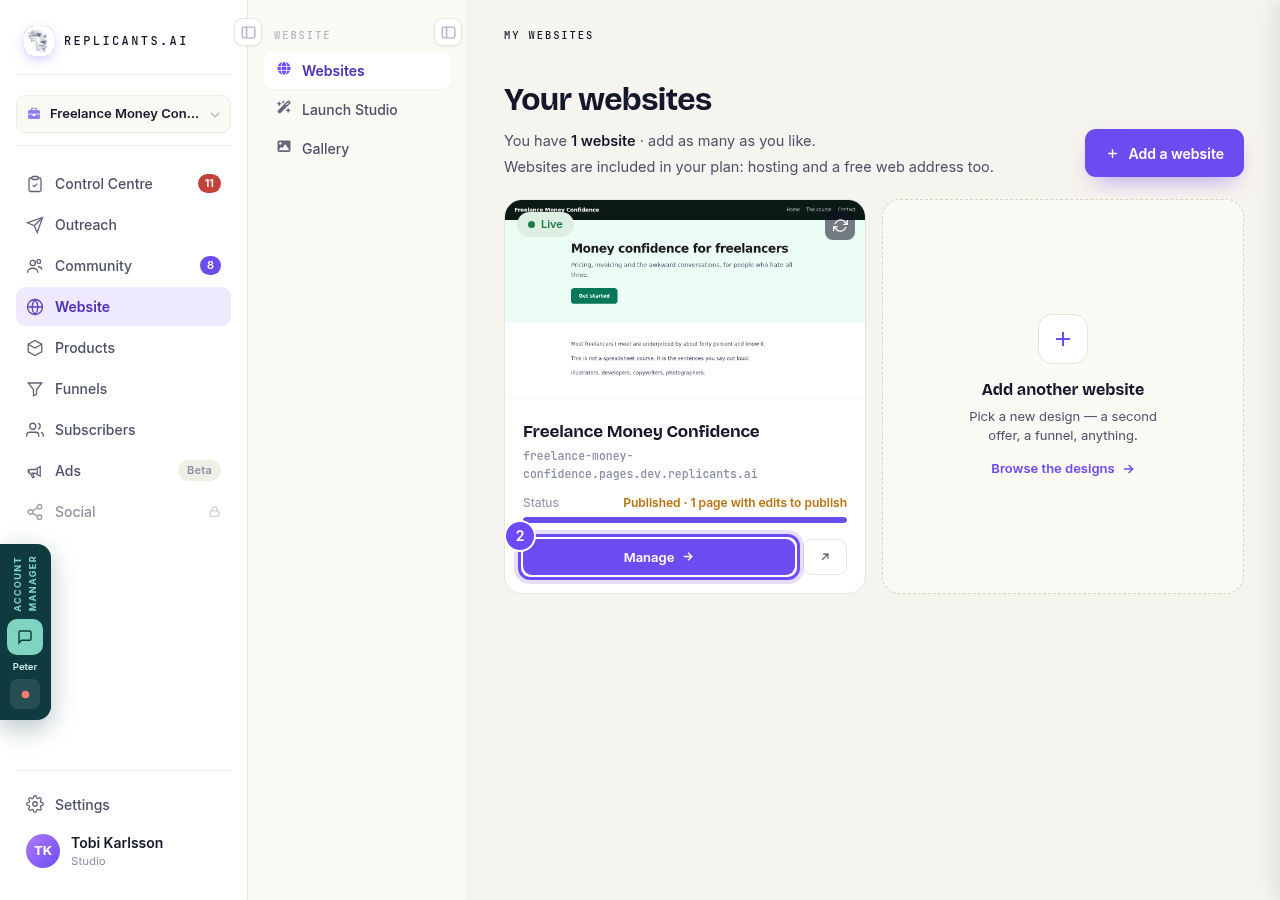
Press **Manage** on your website.
Open The Vault
The Vault is your free-stuff page: blog, downloads, podcast and videos.
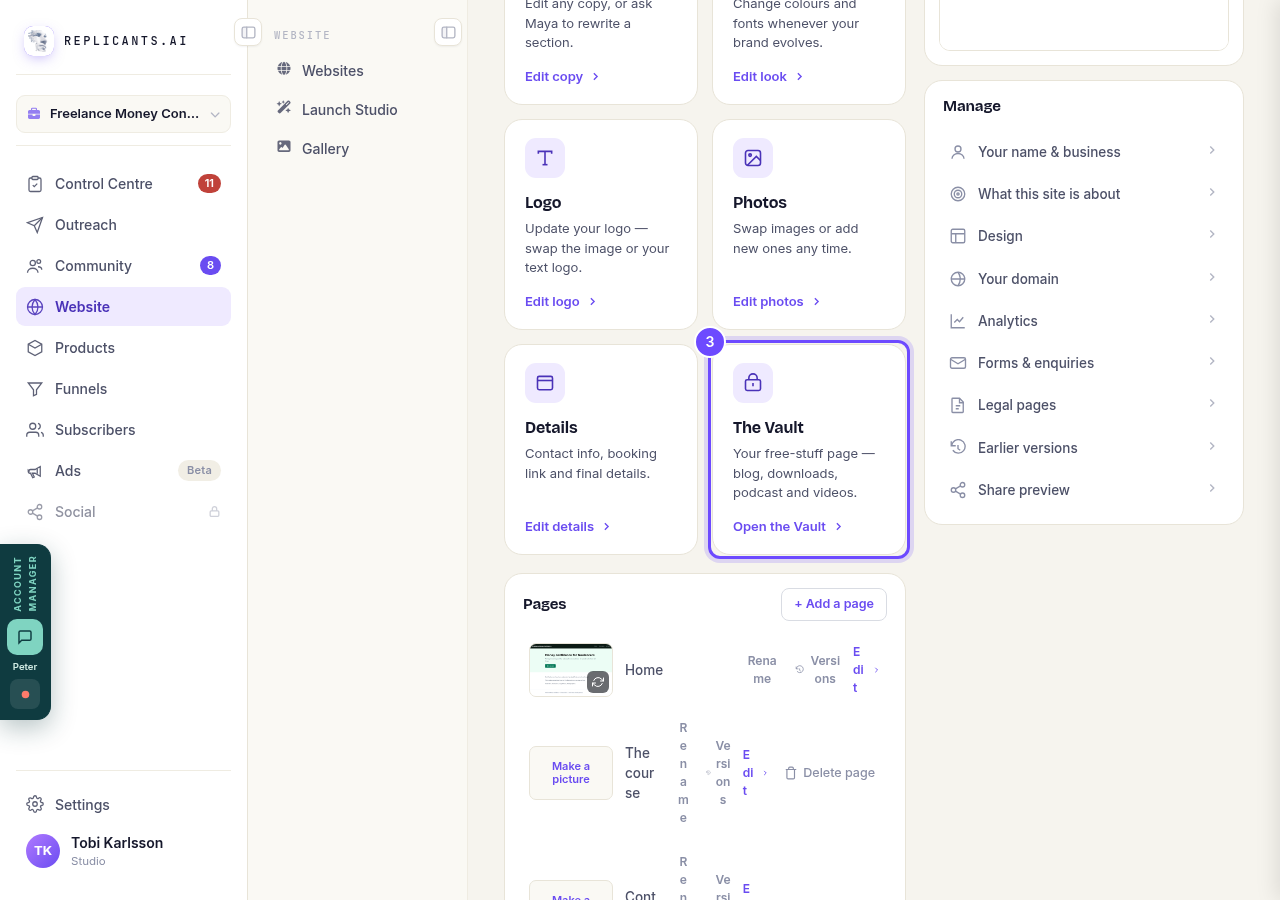
Press **Open the Vault**.
Switch on the Blog
It is under What's on the page. The blog is powered by your community, so your posts are ready to pick from.
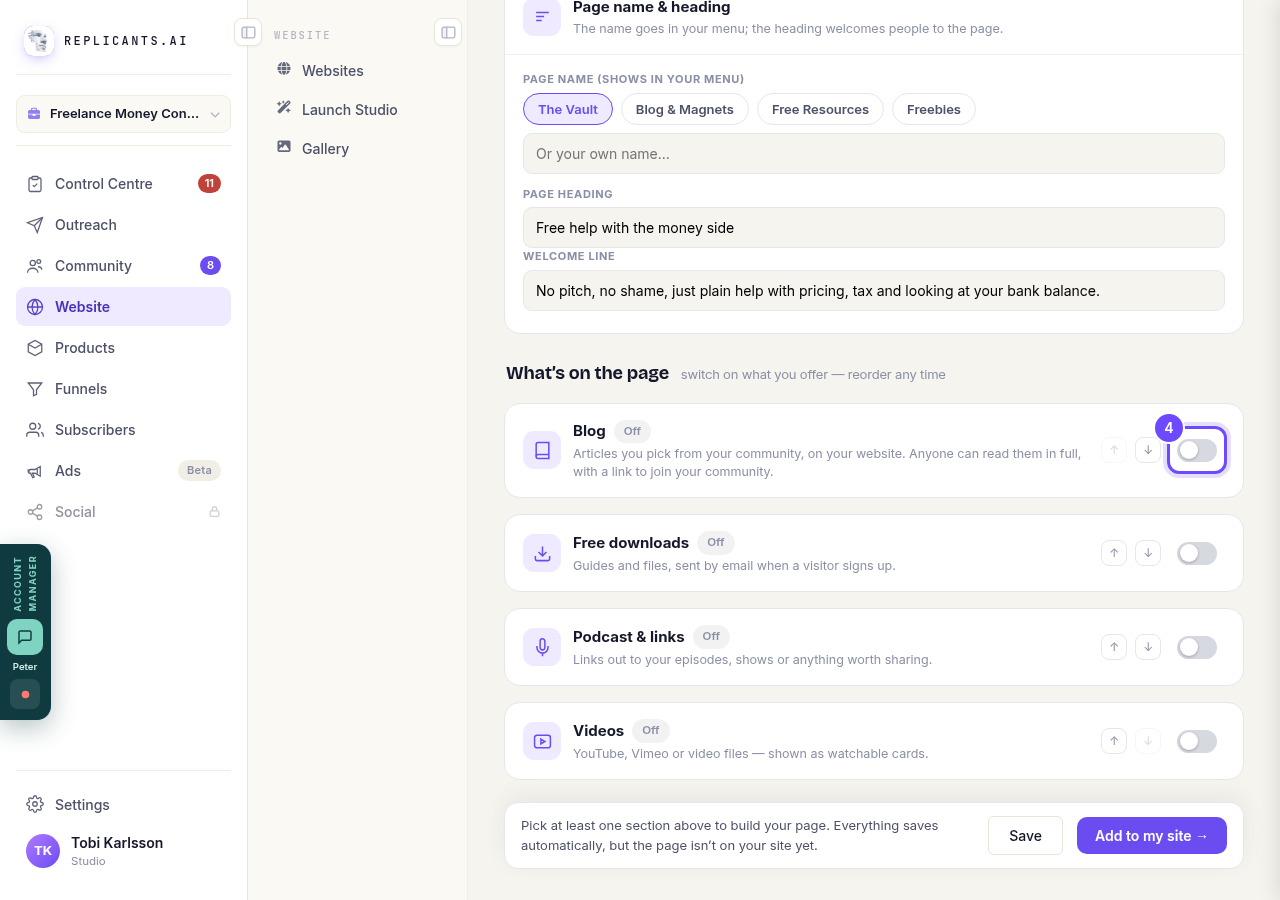
Press the switch next to **Blog**.
Check where your articles will show
The line under the heading boxes says it: on this page, and in your home page's blog section if it has one, straight away.
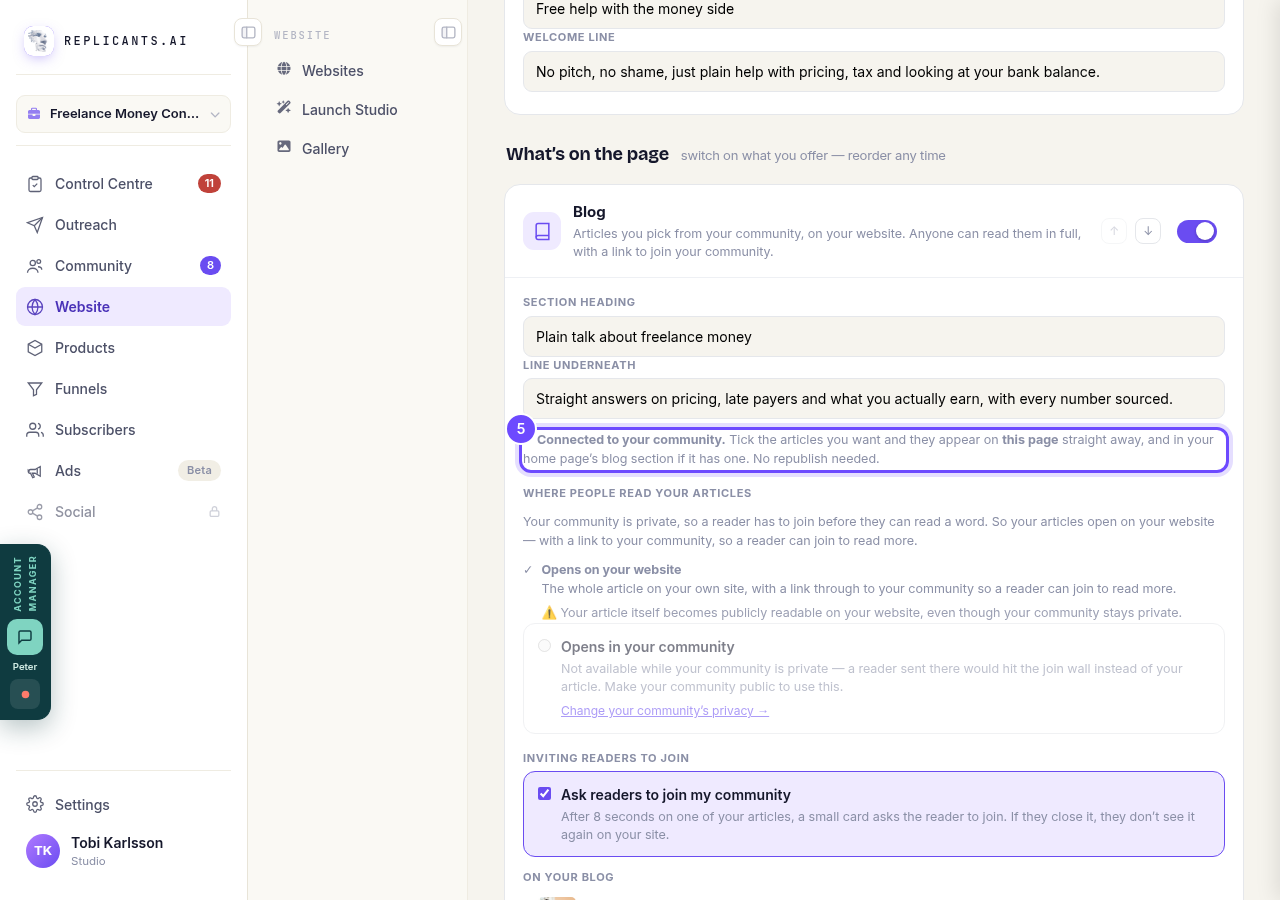
Connected to your community, under Line underneath.
Feature a post
Your published community posts are listed under On your blog. A ticked post is on your website. Press it again to take it off.
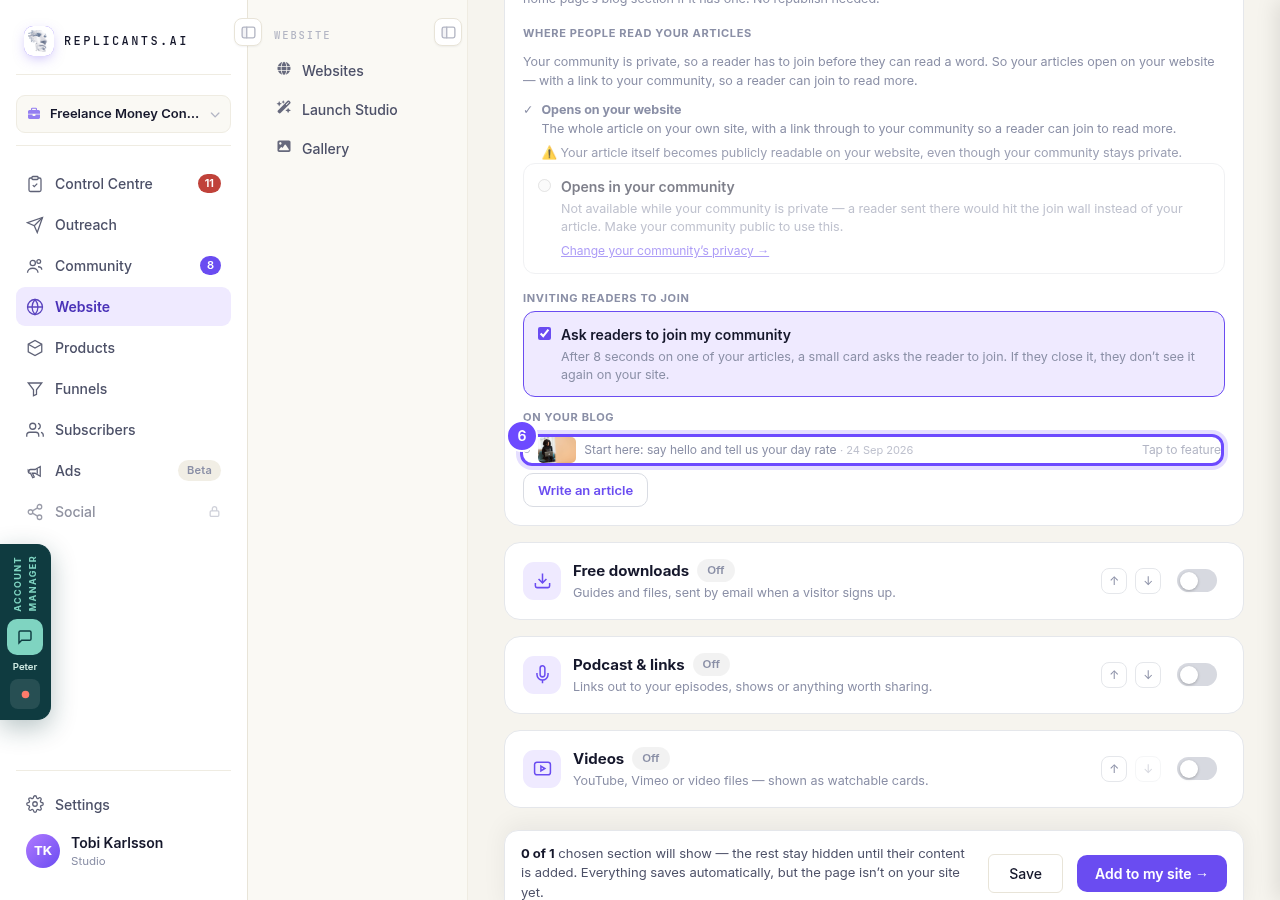
Press a post that says **Tap to feature**.
Open its picture
Each article shows as a card with a picture: the post's own picture, or your site's share photo if the post has none.
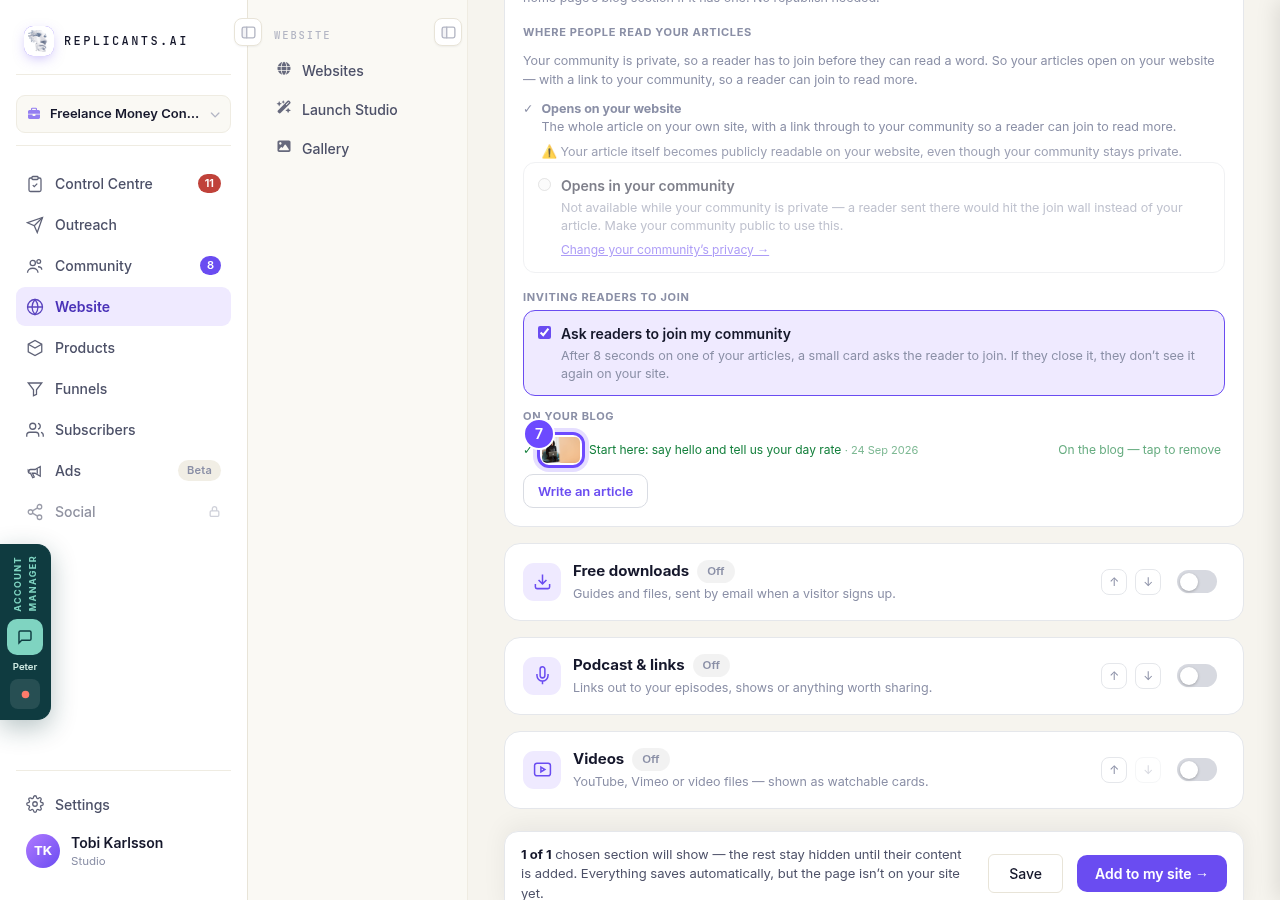
Press the small picture beside the post.
Choose the picture
Change the picture picks another one, Move & zoom frames it, and Remove the picture shows the card without one.
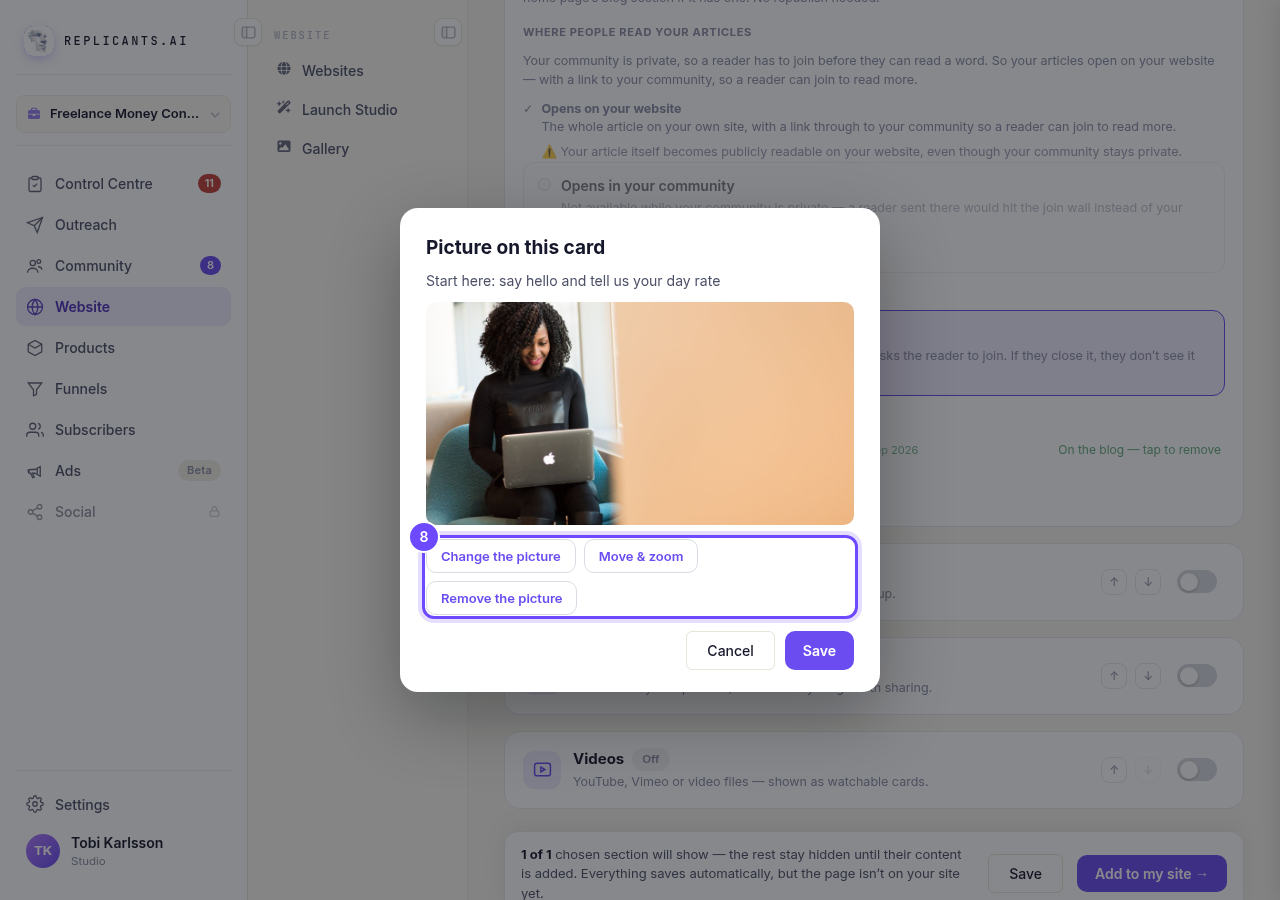
Press the one you want.
Save it
Nothing changes until you save, so Cancel really cancels.
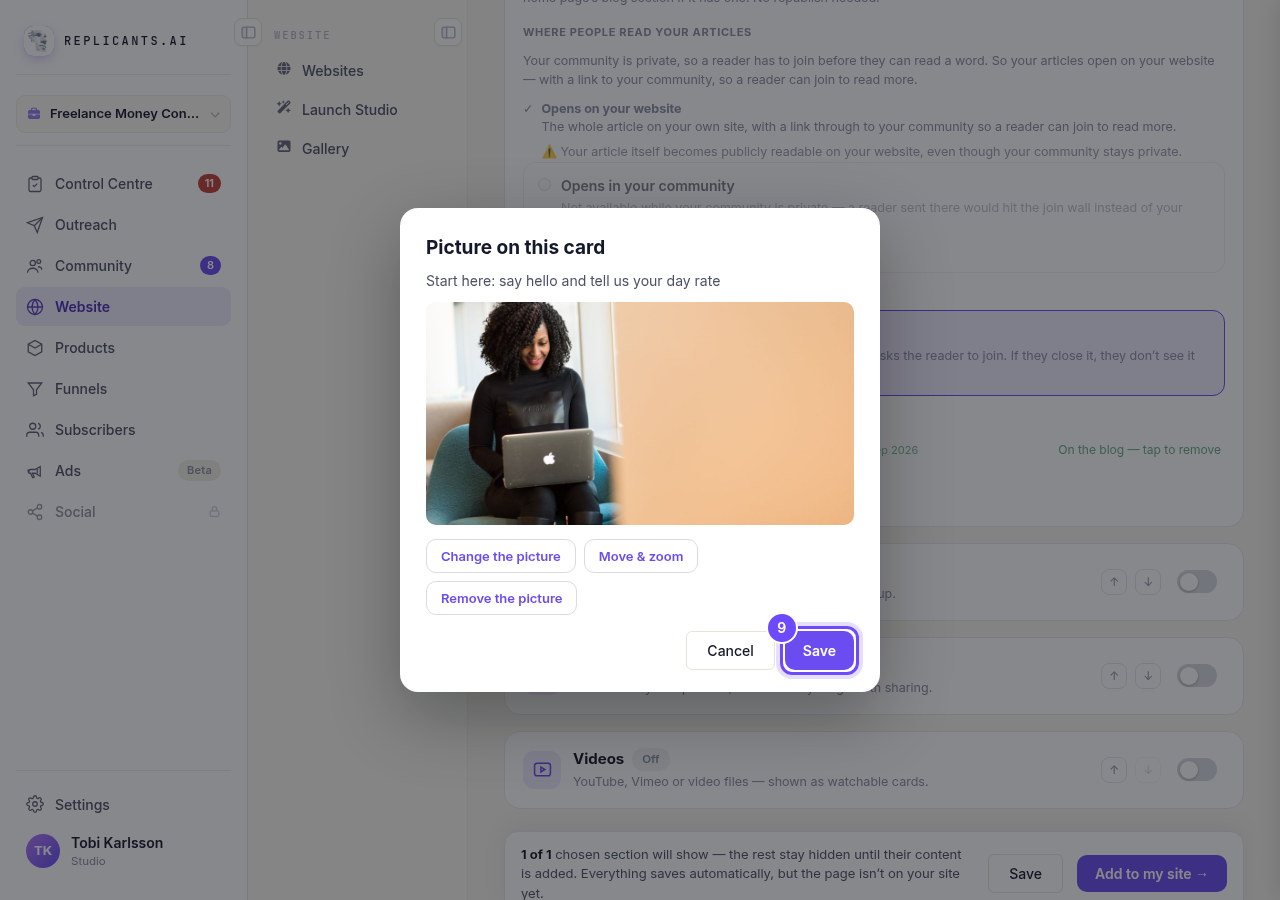
Press **Save**.


Related articles
How do I add a new page to my website?
You add a page from your website's Manage board. It starts as a draft in your site's design and goes live when you republish. About five minutes.
How do I add a privacy policy and terms to my website?
Every website has a Privacy Policy and Terms & Conditions, linked from the footer. We write them for you, or you upload your own. About two minutes.
How do I change how my website looks?
Everything you can change sits on one board. Open Website, press Manage, and look under Make a change for a tile per kind of change. The whole design is under Design in the Manage list.