
How do I change how my website looks?
Everything you can change sits on one board. Open Website, press Manage, and look under Make a change for a tile per kind of change. The whole design is under Design in the Manage list.
Updated 6 October 2026
Take me there
Open Website
Website is in the main menu on the left. On a phone, press the menu button at the top right first.
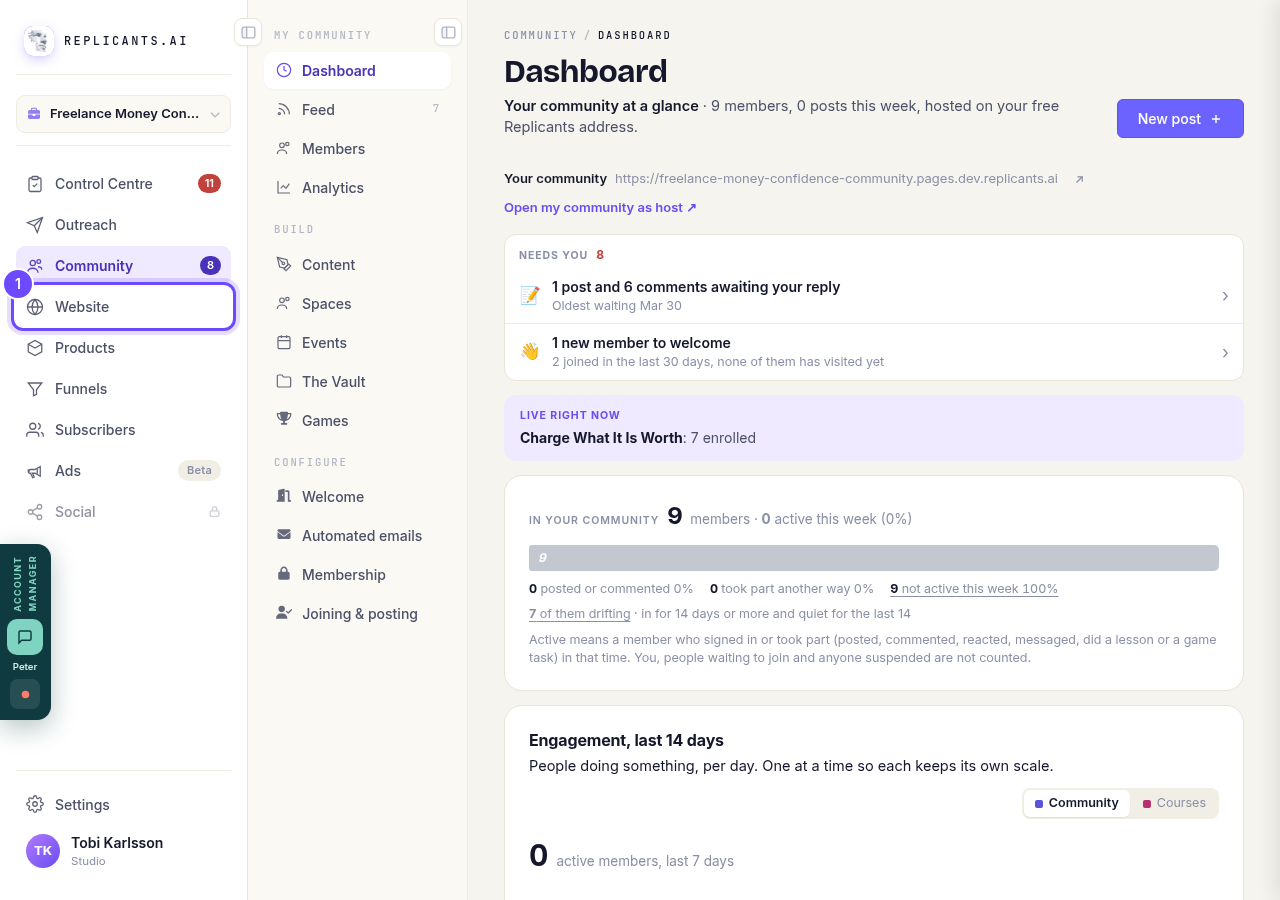
Website, in the main menu.
Take me therePress Manage on your site
Your websites lists every site you have. Press Manage on the one you want to change. That opens its Manage board.
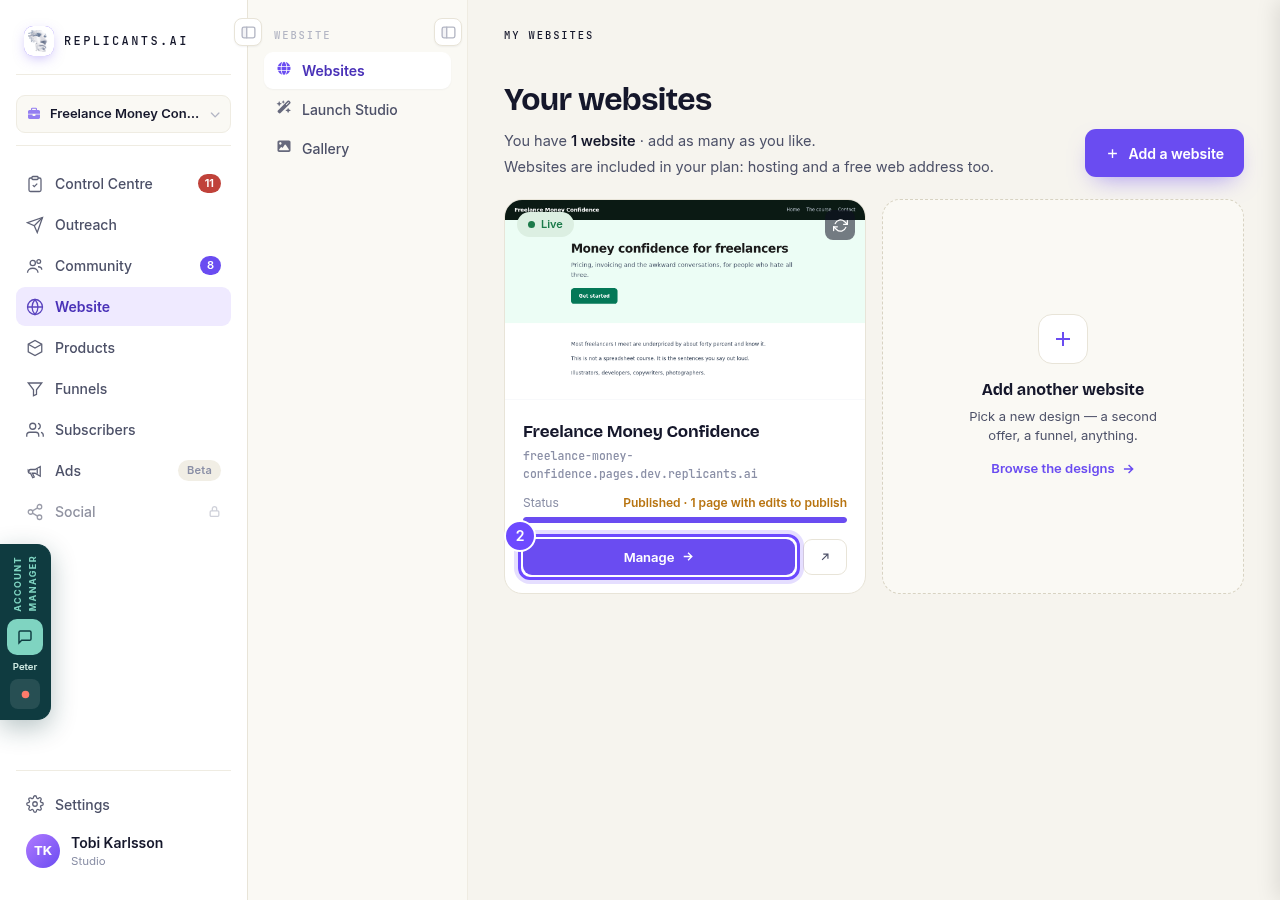
Manage, on your site's card.
Press Edit look for colors and fonts
Under Make a change there is a tile for each kind of change: Words, Look, Logo, Photos, Details and The Vault. Edit look on the Look tile gives you color palettes named Evergreen, Ember, Ink, Ocean, Rose and Sage, plus font pairings.
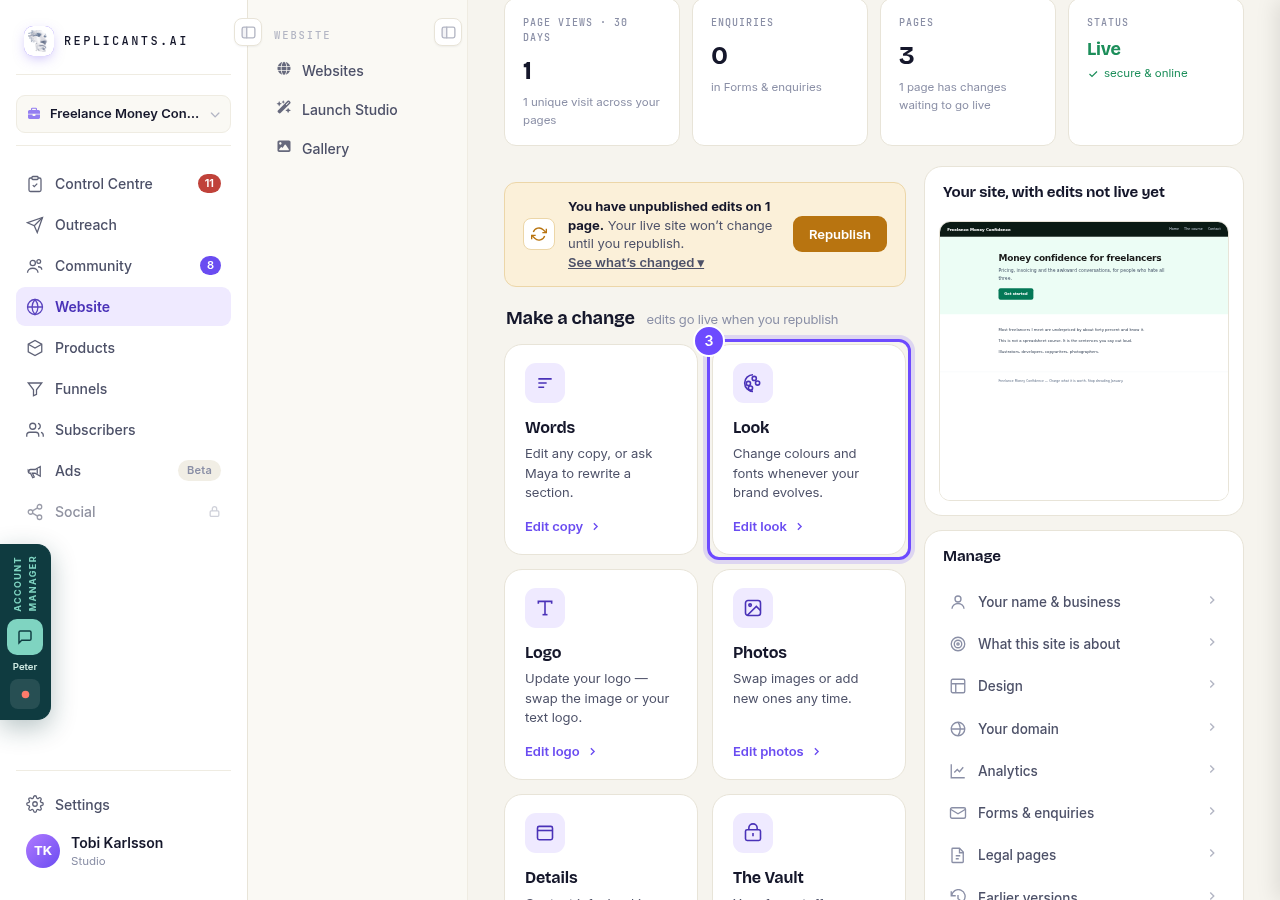
The Look tile, under Make a change.
Press Edit logo for your logo
Upload a picture, or use your name as a text logo. Edit photos on the Photos tile beside it works the same way, for swapping a picture that came with your design.
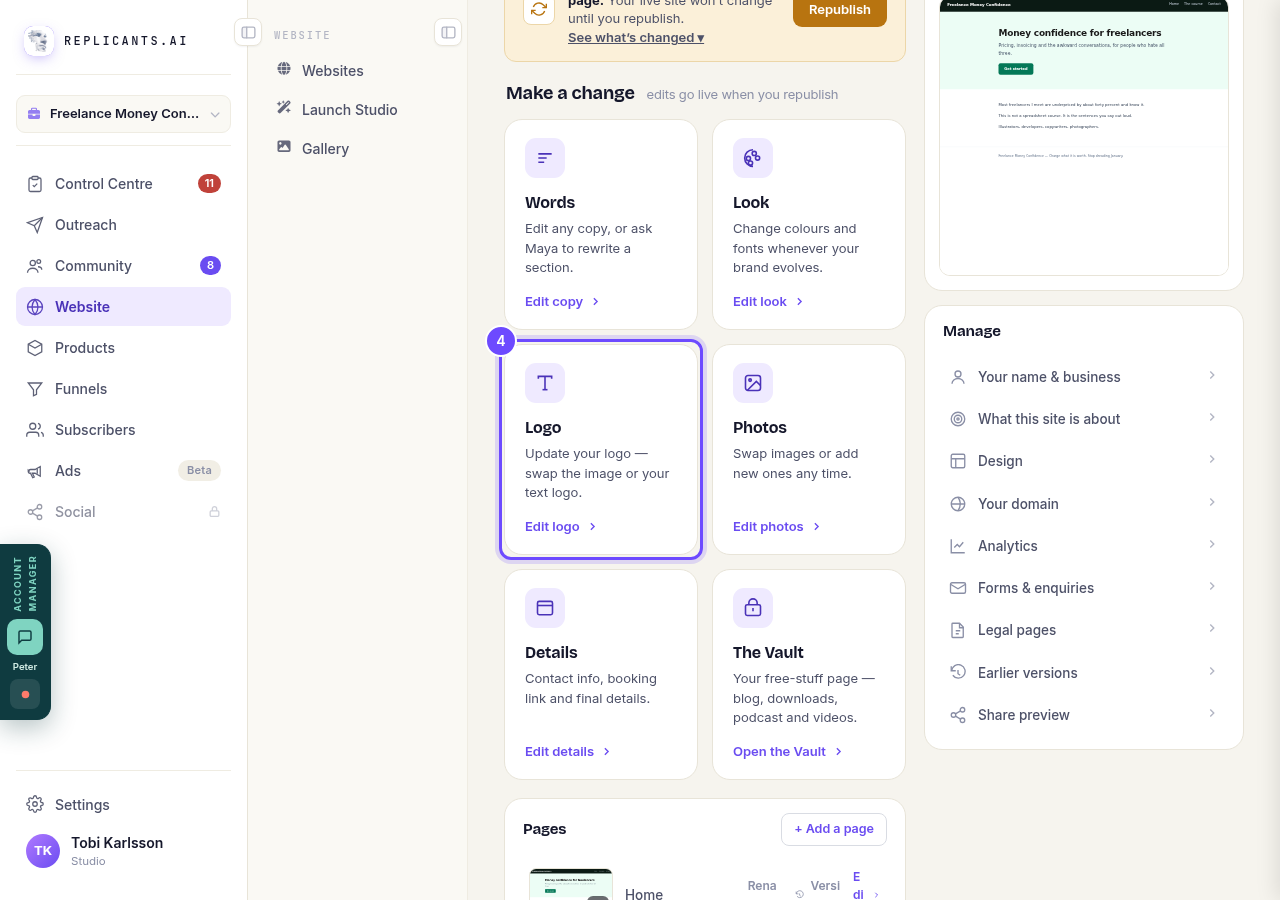
The Logo tile.
Press Edit copy to change the wording
Edit any line yourself, or ask Maya to rewrite a section. Your pages are also listed lower down the same board, each with Edit beside it.
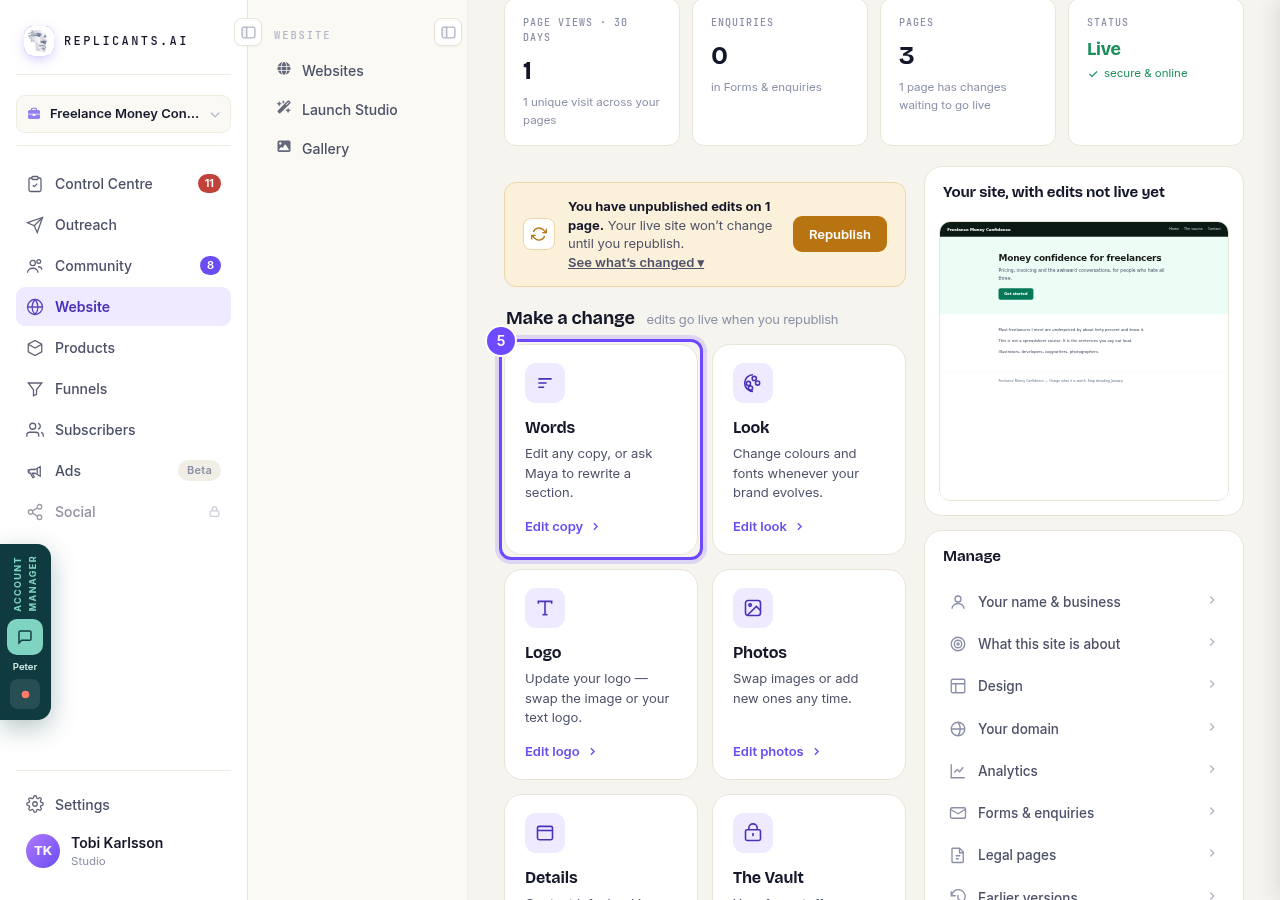
The Words tile.
To change the whole design, press Design
Design is in the Manage list on the right of the board, under What this site is about.
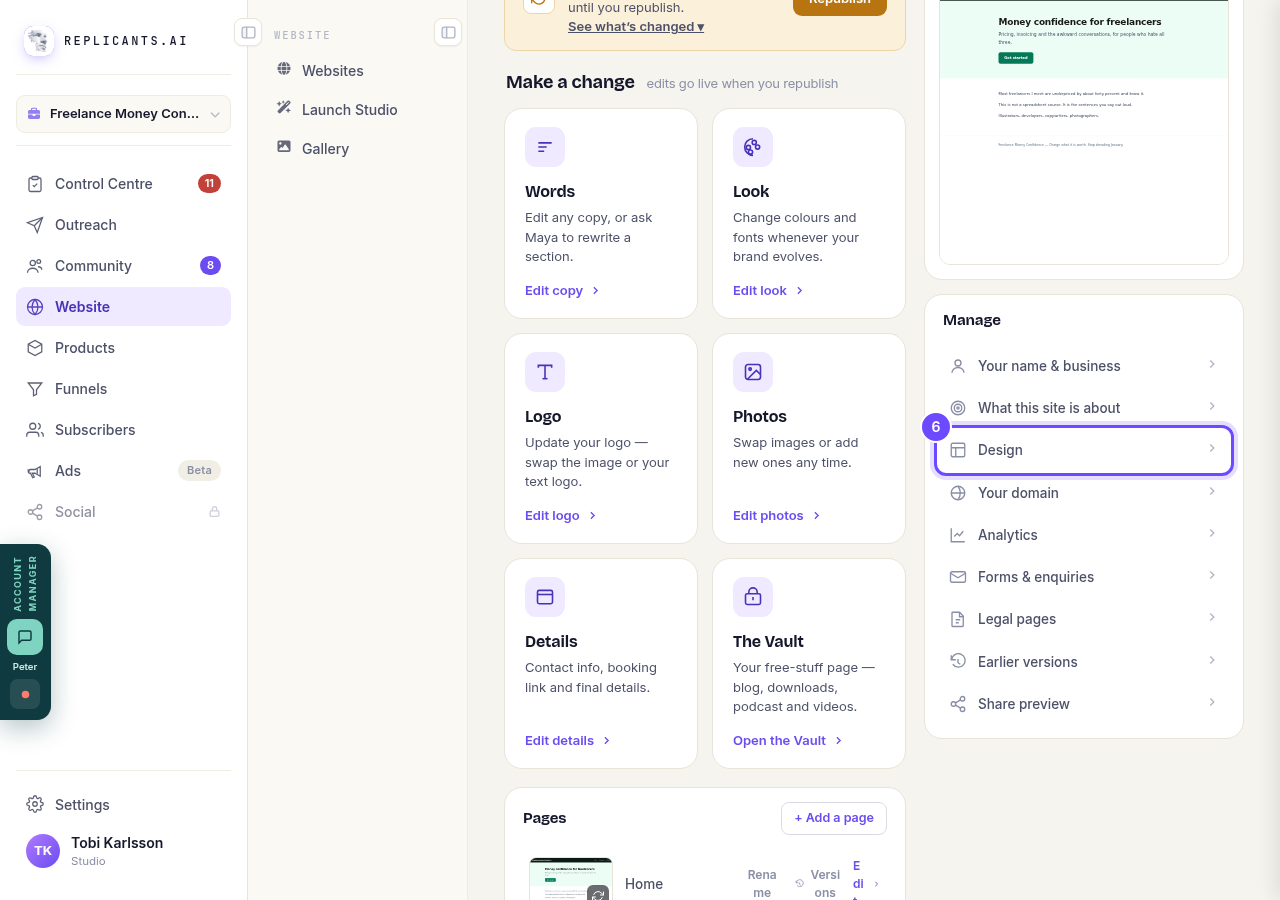
Design, in the Manage list.
Switch before you go live, or start a new site
Before a site is live, Design opens the gallery. Pick a design, and the box tells you before anything moves that your current design is kept for 14 days; the button says Switch design (you can switch back for 14 days). If you prefer the old one, press Put my old design back in the Your design panel.
Once a site is live, switching would replace every page, so you get this note instead. Everything else can still change on a live site: your words, photos, colors and fonts, your logo and your menu. Start a new site on another design builds a new one while this site stays live.
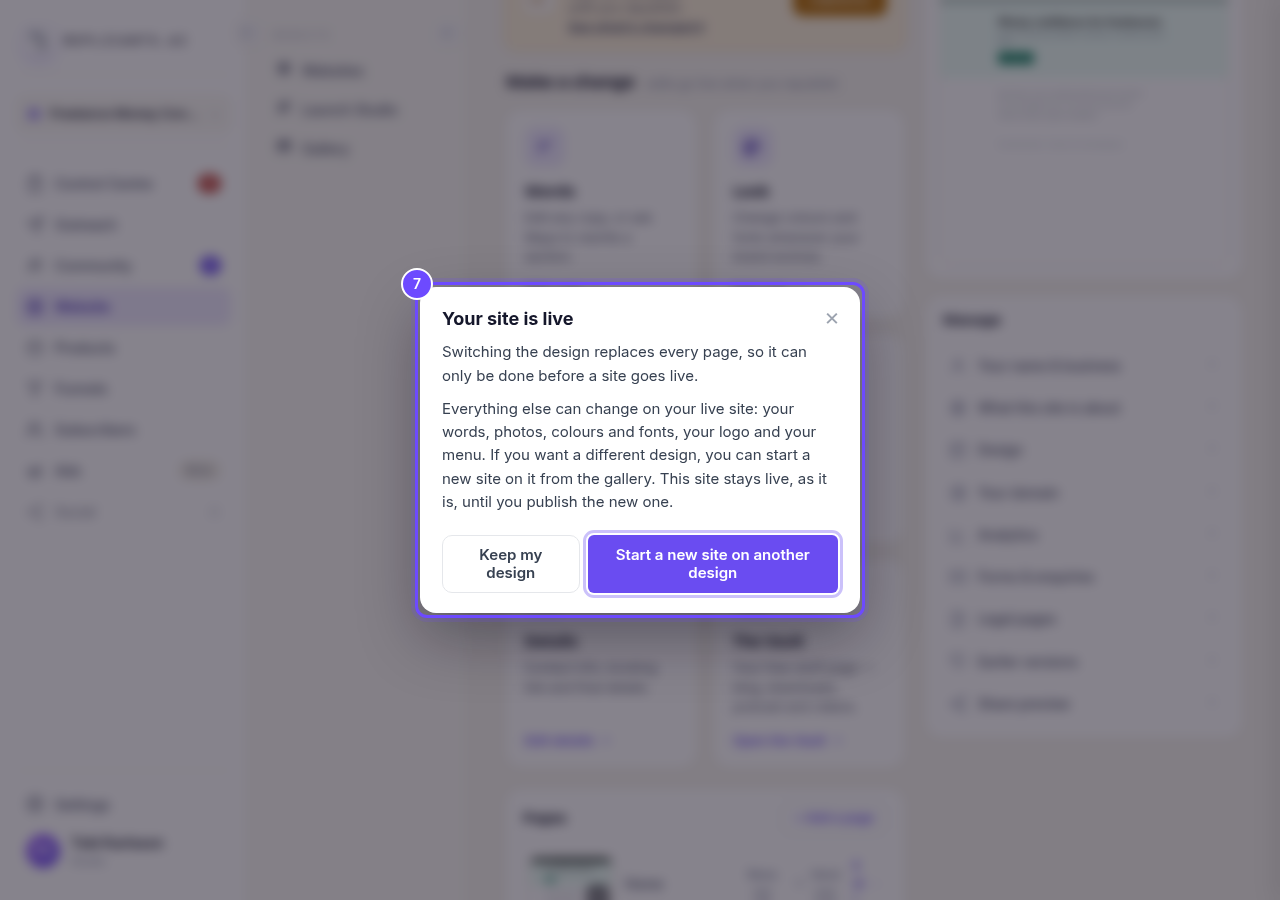
The note a live site gets, with Start a new site on another design.


Related articles
How do I add a new page to my website?
You add a page from your website's Manage board. It starts as a draft in your site's design and goes live when you republish. About five minutes.
How do I add a privacy policy and terms to my website?
Every website has a Privacy Policy and Terms & Conditions, linked from the footer. We write them for you, or you upload your own. About two minutes.
How do I change my website's menu and footer?
Your top menu and footer are the same on every page, so you change them in one place and every page follows. About five minutes.