
How do I publish my website?
Publishing lives inside the page you're editing, not on the Websites screen. Open the page, change it, press Save, then Publish.
Updated 15 September 2026
Take me there
Open Websites and press Manage
Press Manage on the site you want to change. This screen has no Publish button, and that's normal.
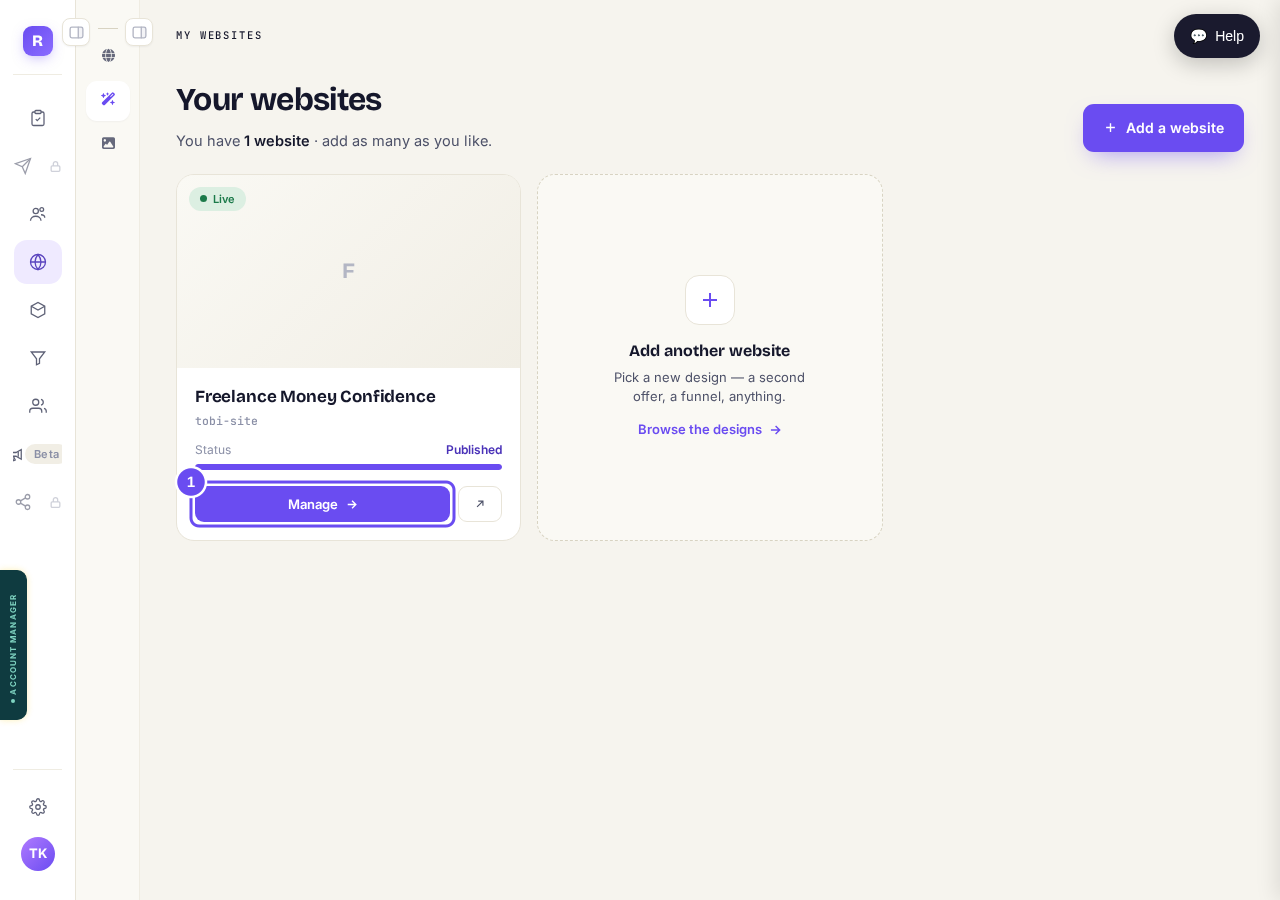
Press "Manage" on the site you want to change.
Take me thereRead the green bar at the top
The green bar gives your address and whether you're live. Publish isn't here — it's inside a page, in step 3. And with nothing changed, there's nothing to publish.
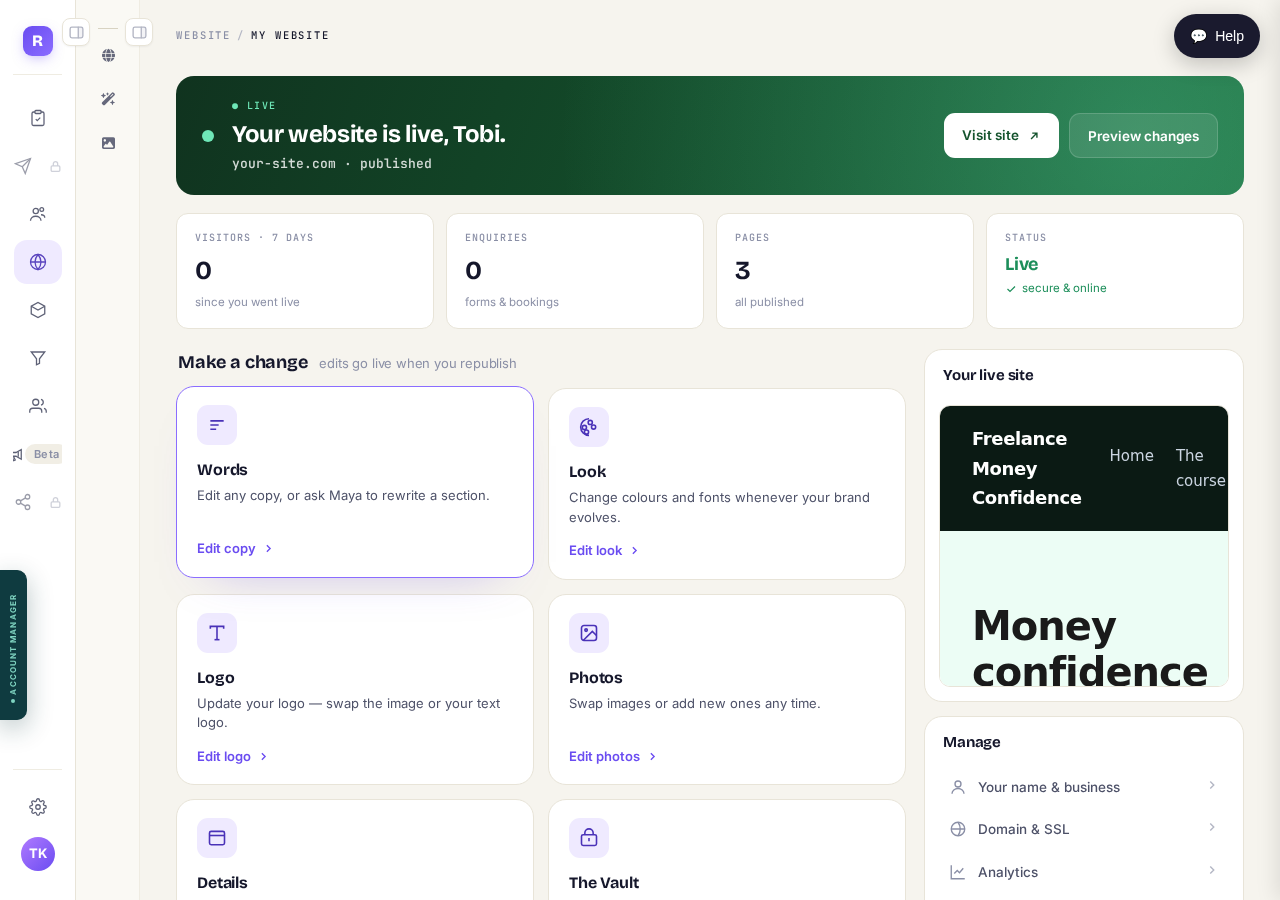
There is no Publish button here. Nothing is wrong.
Find your page and press Edit
Press Edit on the row for the page you want. It opens in a new browser tab. If Edit looks like it did nothing, check along the top of your browser.
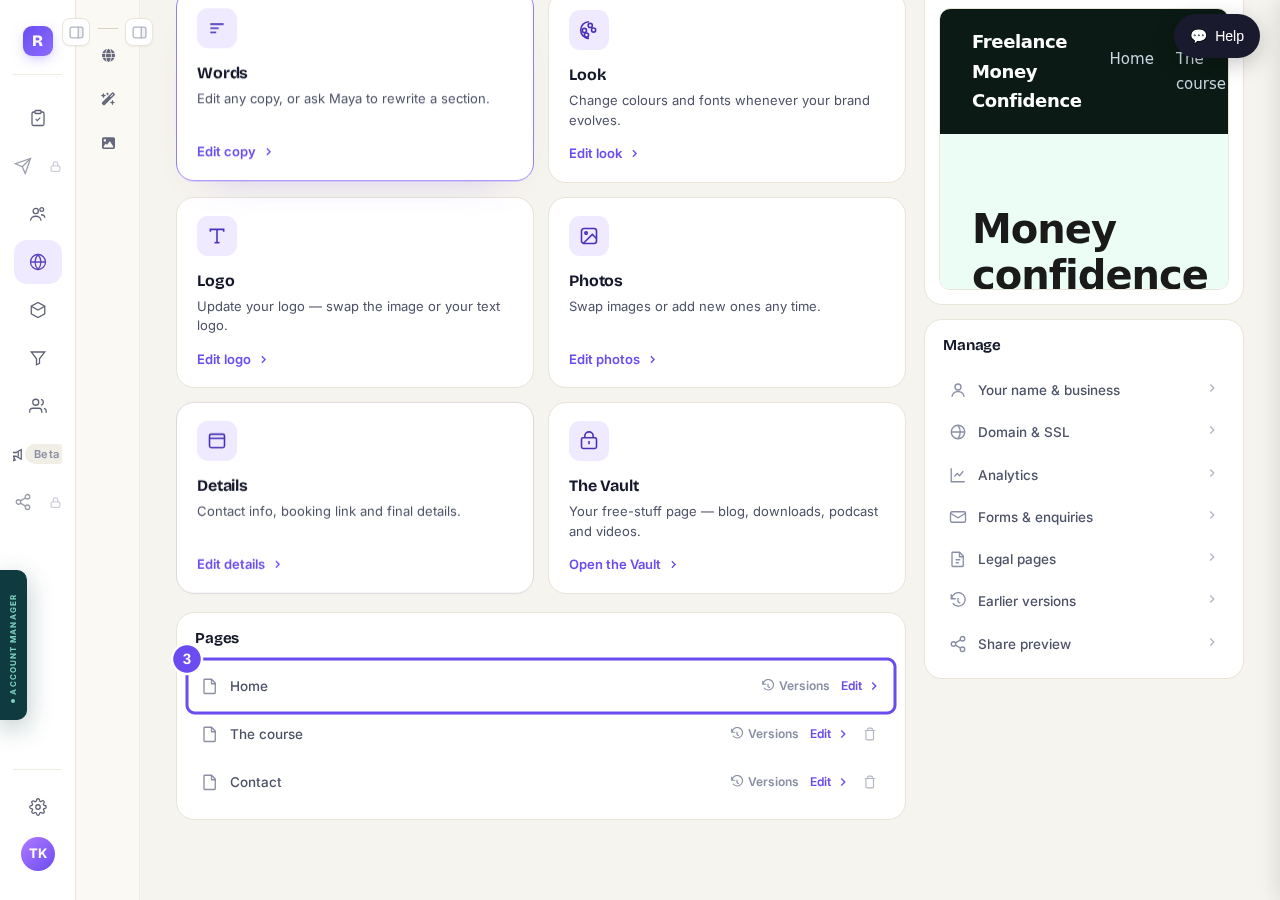
Press "Edit" on the row for the page you want.
Change what you want, then press Save
Press Save when you've made your change. It stores a draft — nobody visiting your site sees it yet. Saving also starts your version history, so Versions can take you back.
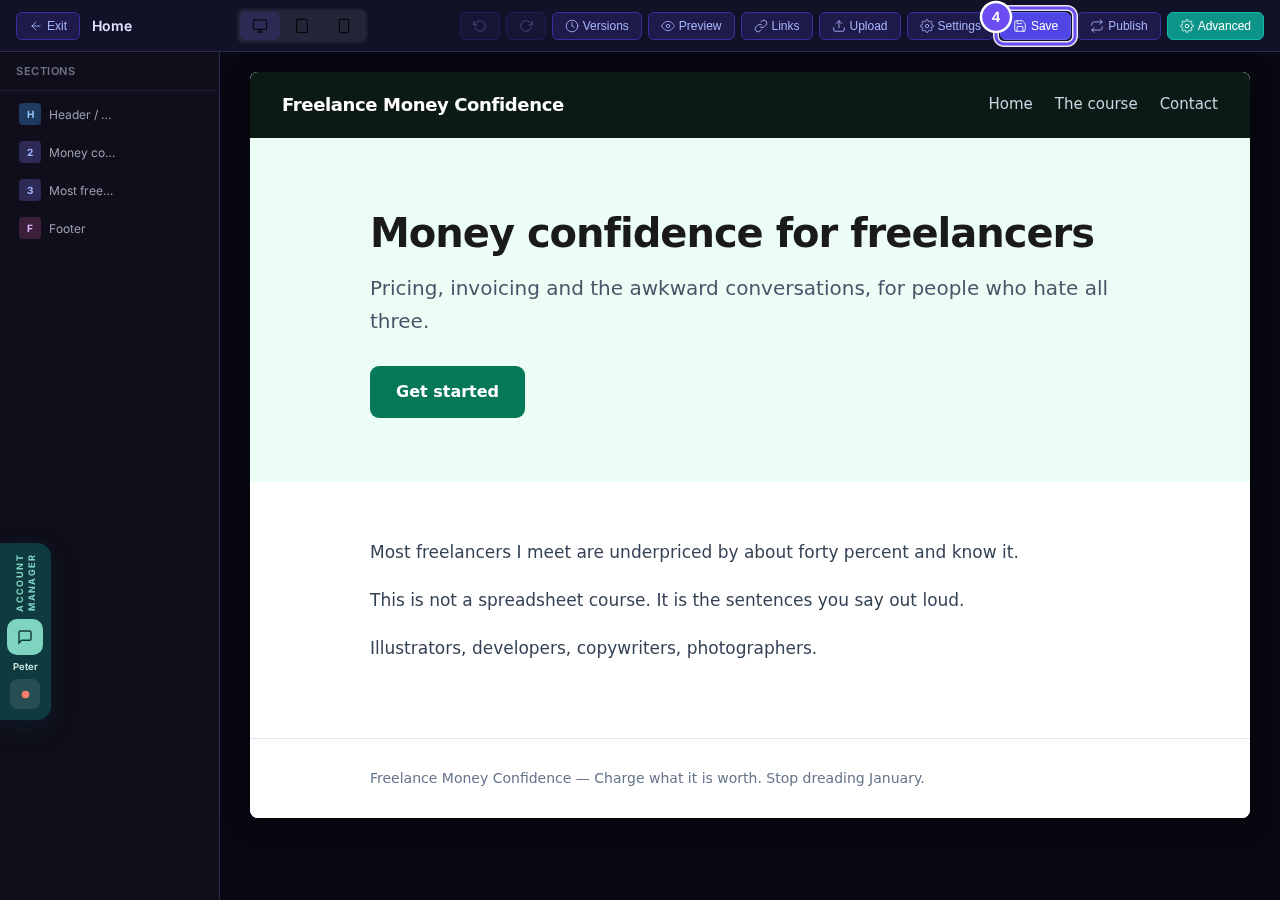
Save keeps it as a draft. Your live site has not changed.
Press Publish
Press Publish, at the top beside Save. That's what puts your change on the internet. Preview first to read the page as a visitor will.
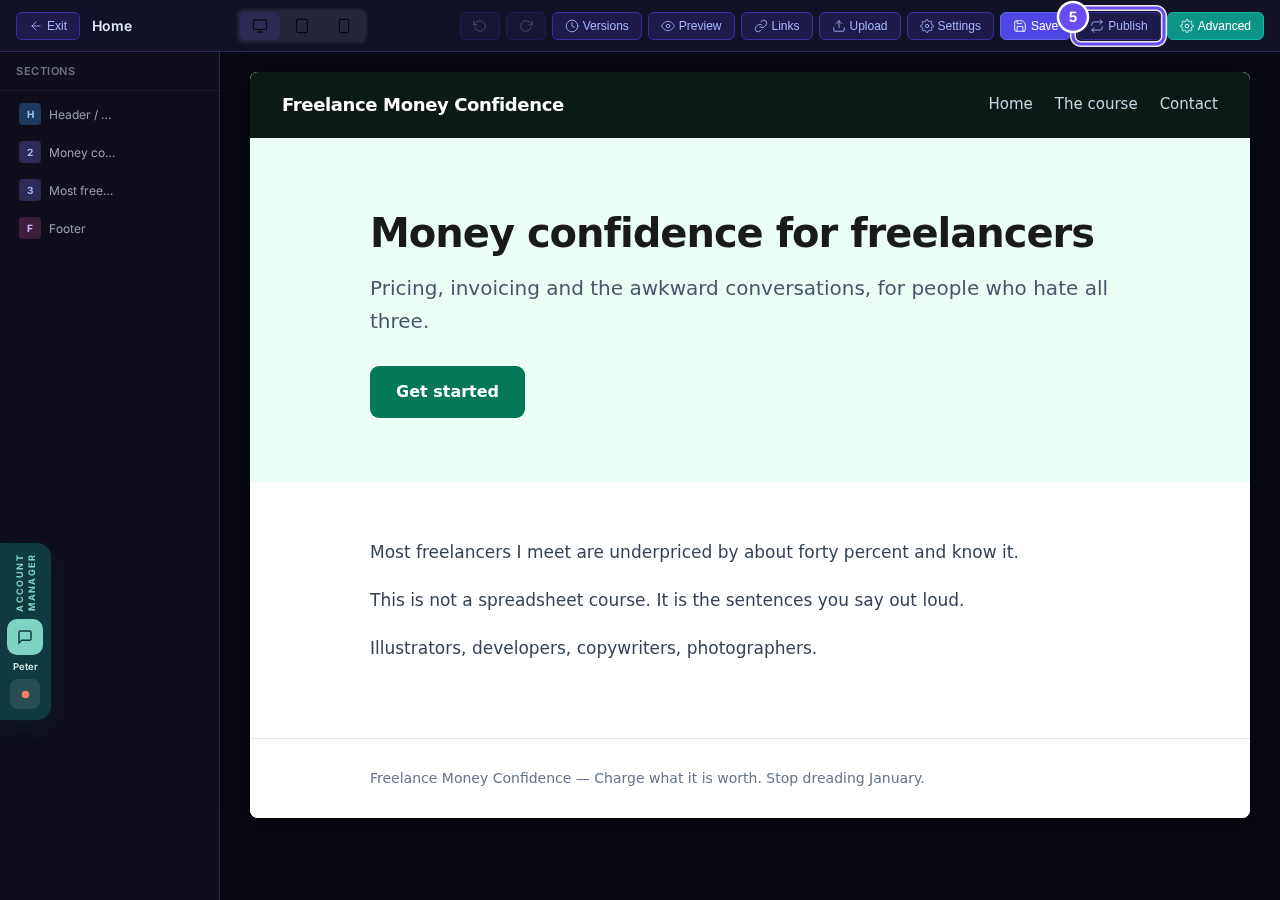
Press "Publish". This is the button coaches ask us about.
Related articles
How do I add a new page to my website?
You add a page from your website's Manage board. It starts as a draft in your site's design and goes live when you republish. About five minutes.
How do I add a privacy policy and terms to my website?
Every website has a Privacy Policy and Terms & Conditions, linked from the footer. We write them for you, or you upload your own. About two minutes.
How do I change how my website looks?
Everything you can change sits on one board. Open Website, press Manage, and look under Make a change for a tile per kind of change. The whole design is under Design in the Manage list.