
Can I read what members post before it goes up?
Yes, with one setting. Switch on **Approve posts before they go live**, and a member's post waits for you instead of going up. You read it under **Waiting for approval** in **Posts & moderation**, then decide. For a post you hold back or hide, **Tell them why** has Maya draft a kind message to the member, and nothing is sent until you press Send. About two minutes.
Updated 11 October 2026
Open Joining & posting
It is in the Community menu on the left, under Configure. On a phone, press the menu button at the top right, then Joining & posting under Community.
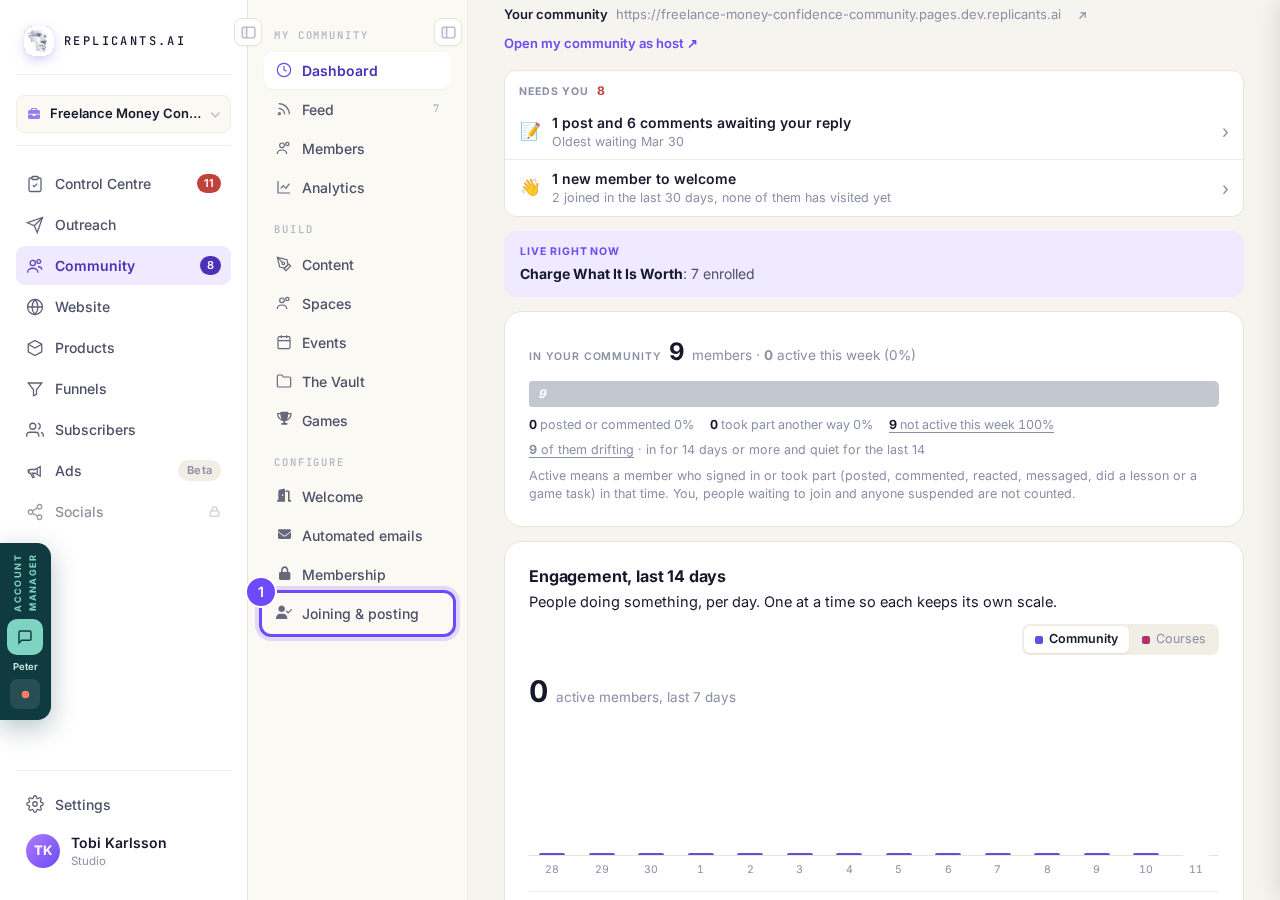
Joining & posting, in the Community menu.
Take me thereSet Approve posts before they go live to On
Choose On: you read each member post first. It is about halfway down the page, under Your feed. Off, member posts appear straight away. Your own posts never wait.
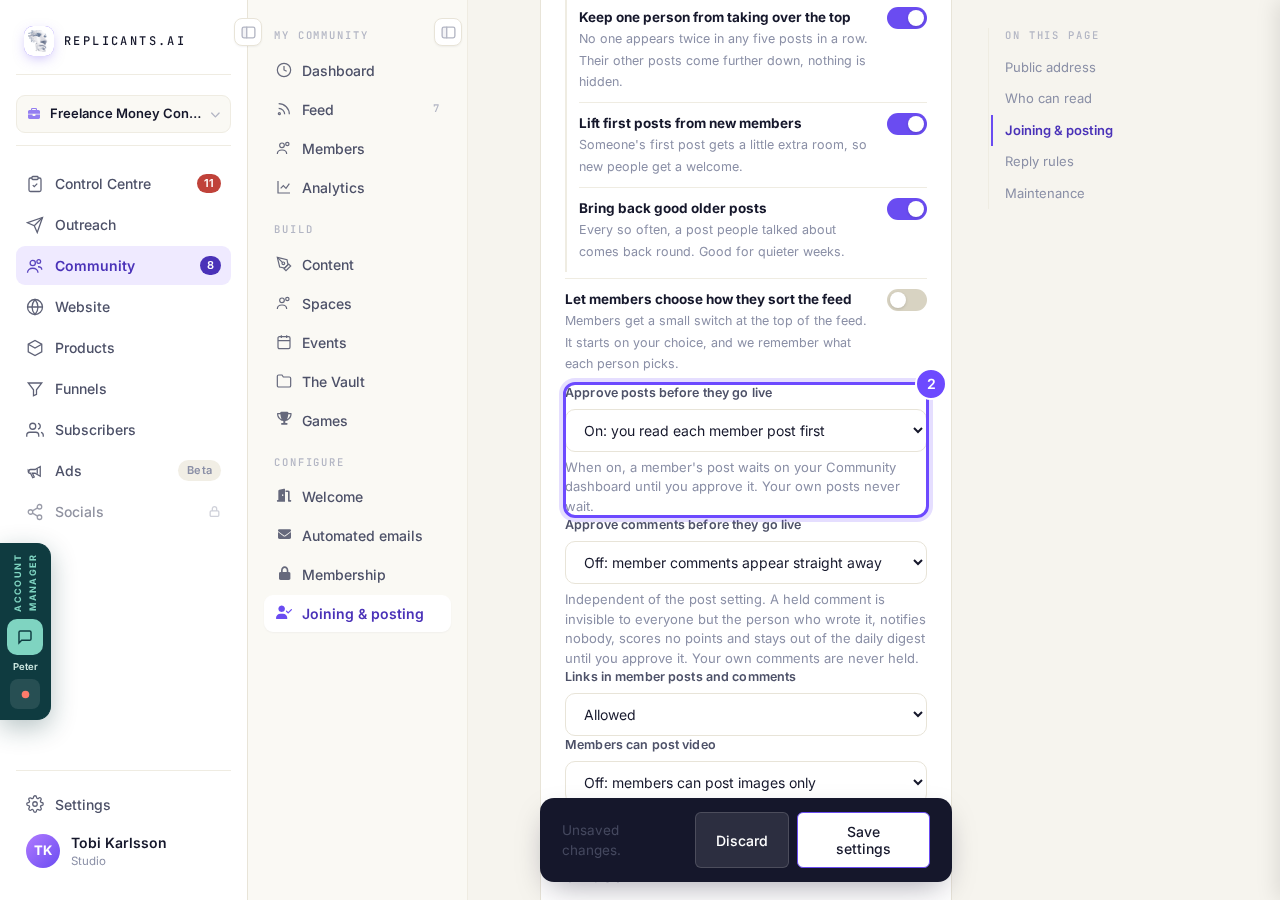
Approve posts before they go live, set to On.
Take me therePress Save settings
It is in the dark bar at the bottom of the screen, which says Unsaved changes. until you press it, then Saved. On a phone, the bar is at the very end of the page. Discard puts the setting back as it was.
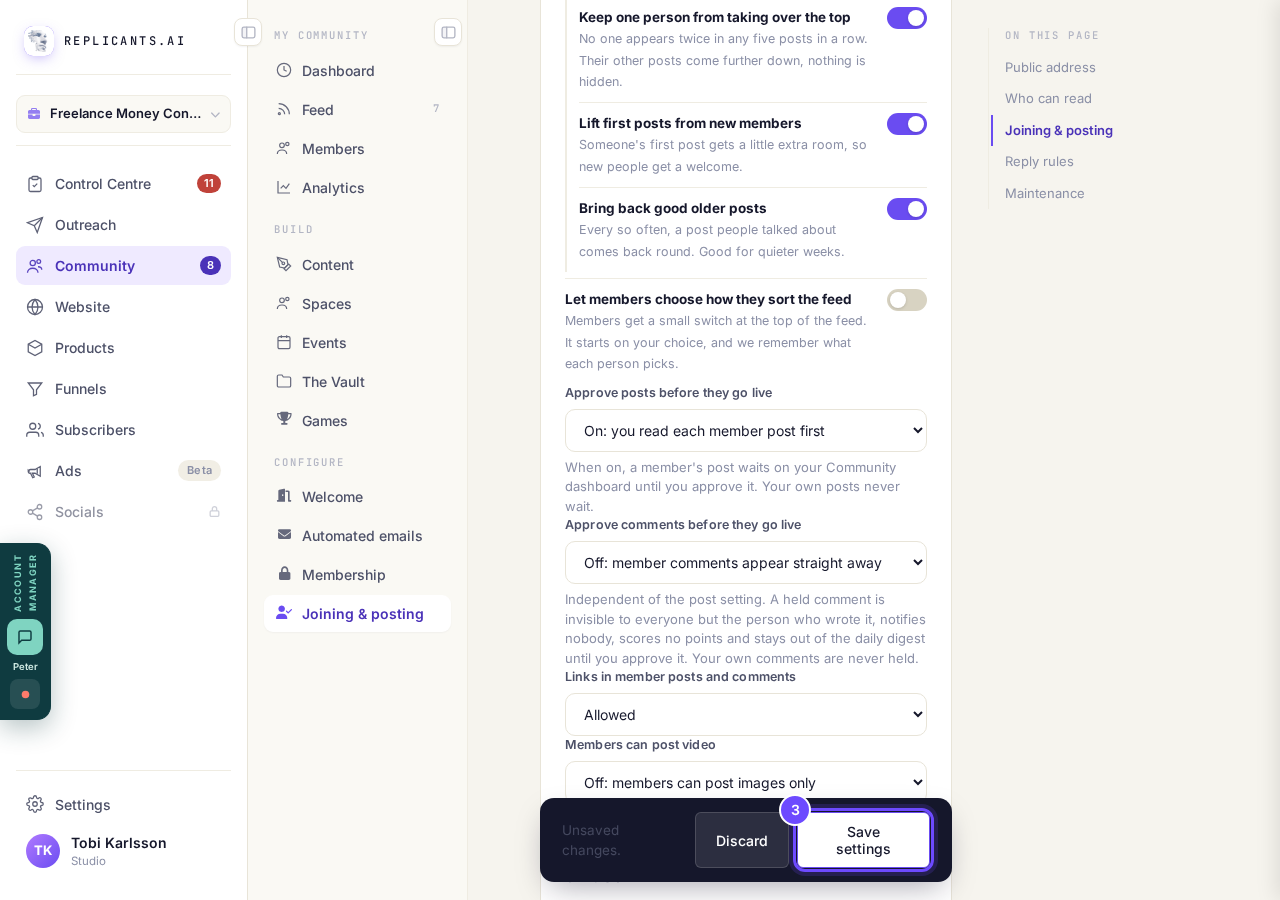
Save settings, in the dark bar.
Take me thereCheck Who can post
It is higher up the same page, under the Community Guard card. All members lets members start posts. Only you (members can comment) means only you start posts. Comments have their own setting, Approve comments before they go live, right under the one for posts.
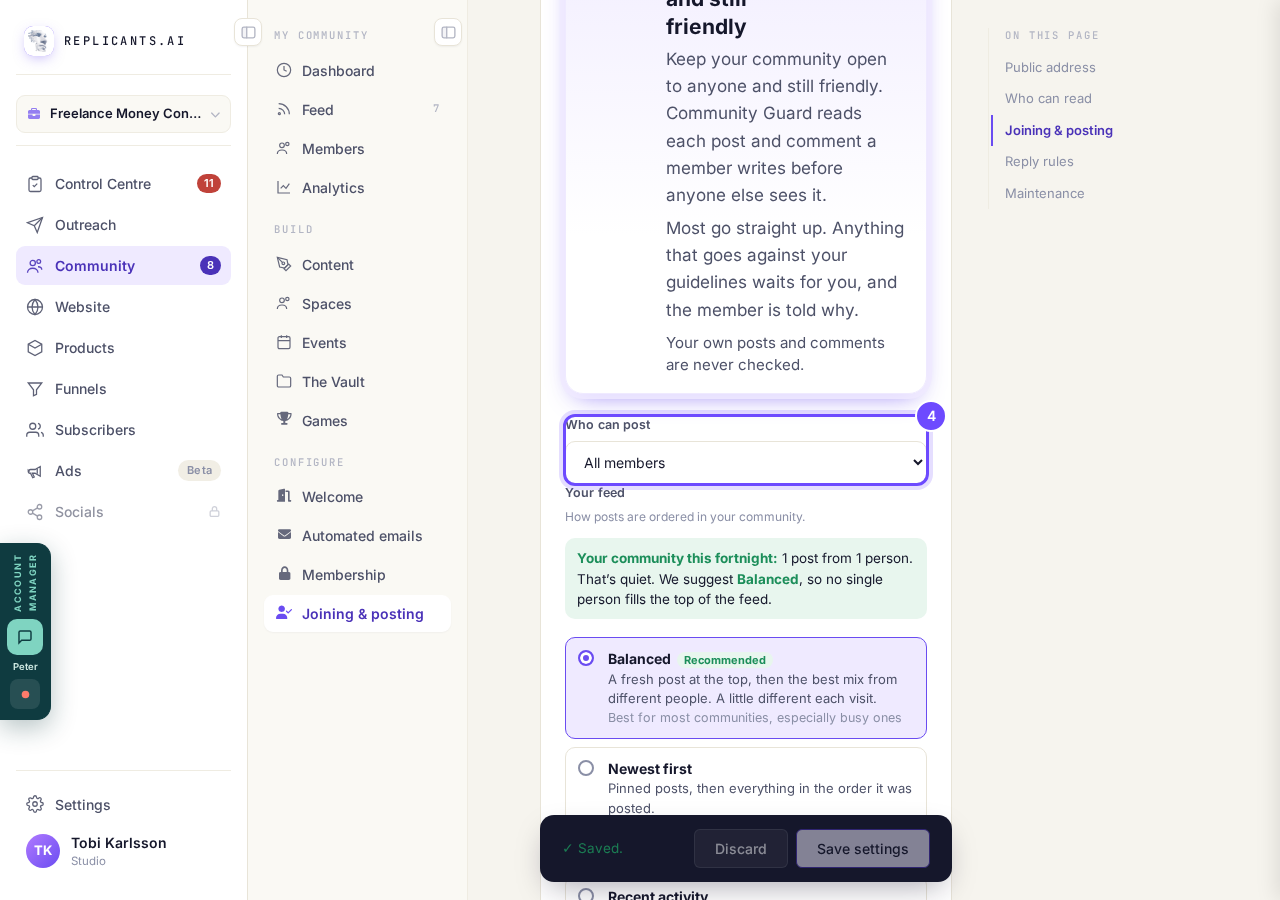
Who can post, higher up the same page.
Take me thereOpen Feed
It is in the Community menu, and it opens Posts & moderation: every post in your community, yours and members'. On a phone, press the menu button at the top right, then Feed under Community.
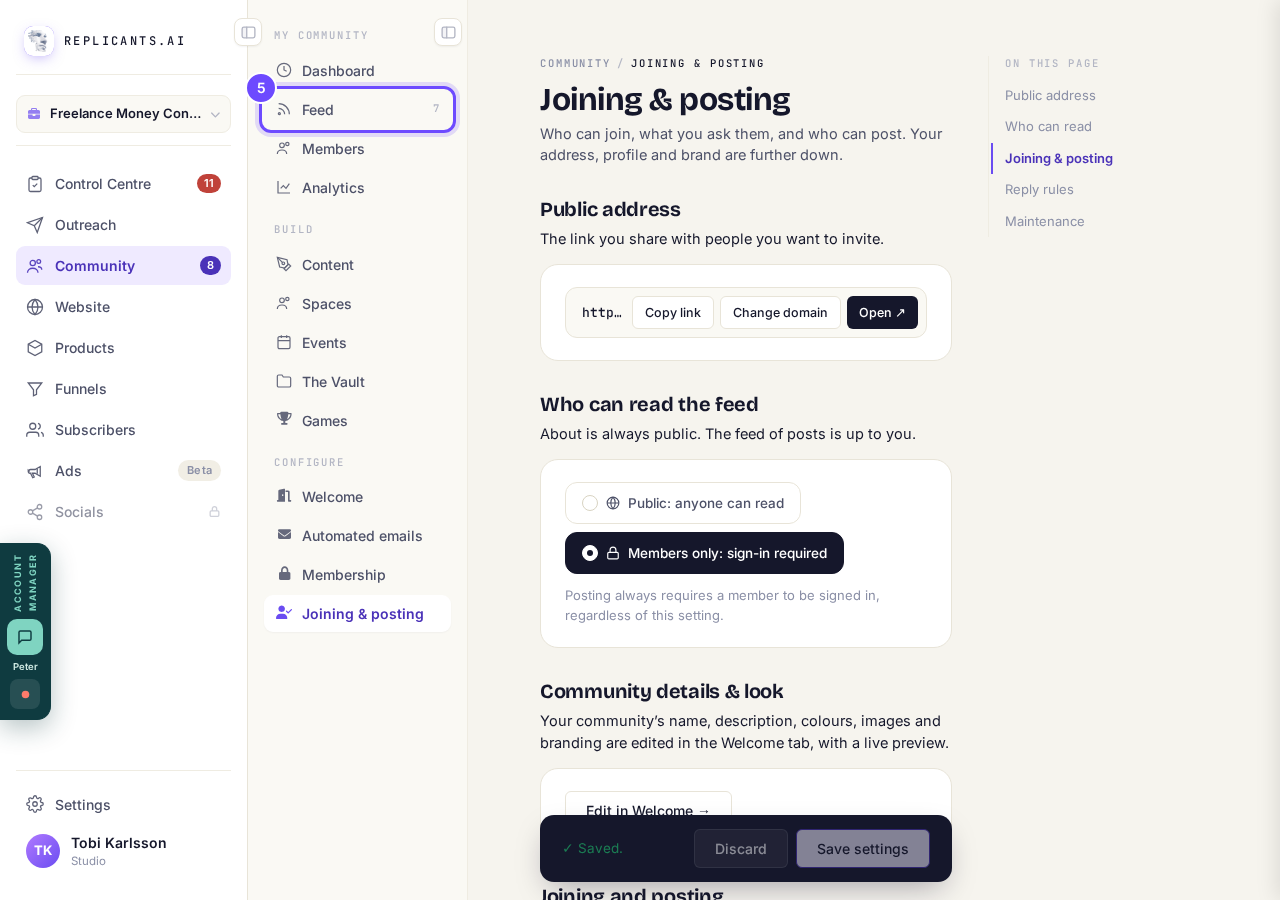
Feed, in the Community menu.
Press Waiting for approval
It is in the row of choices along the top of the list, with a count beside it. A post that is waiting is not in your community yet, so members do not see it. Waiting posts also show on your Community dashboard.
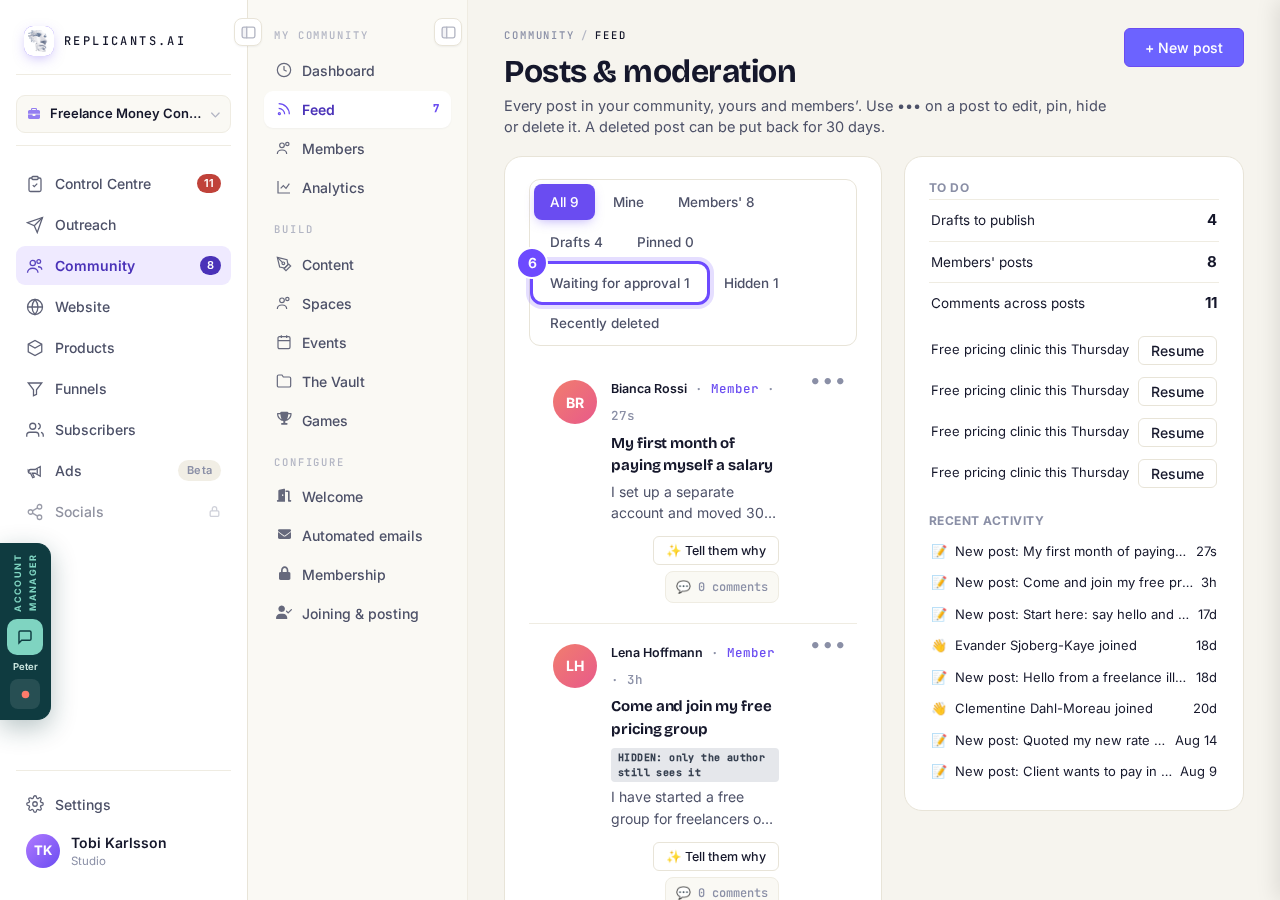
Waiting for approval, with its count.
Press Approve & publish, Open post or Reject
Open post shows the whole post. Approve & publish puts it up straight away. Reject asks you first, then removes it, so it never appears. The member is not told either way, unless you use Tell them why.
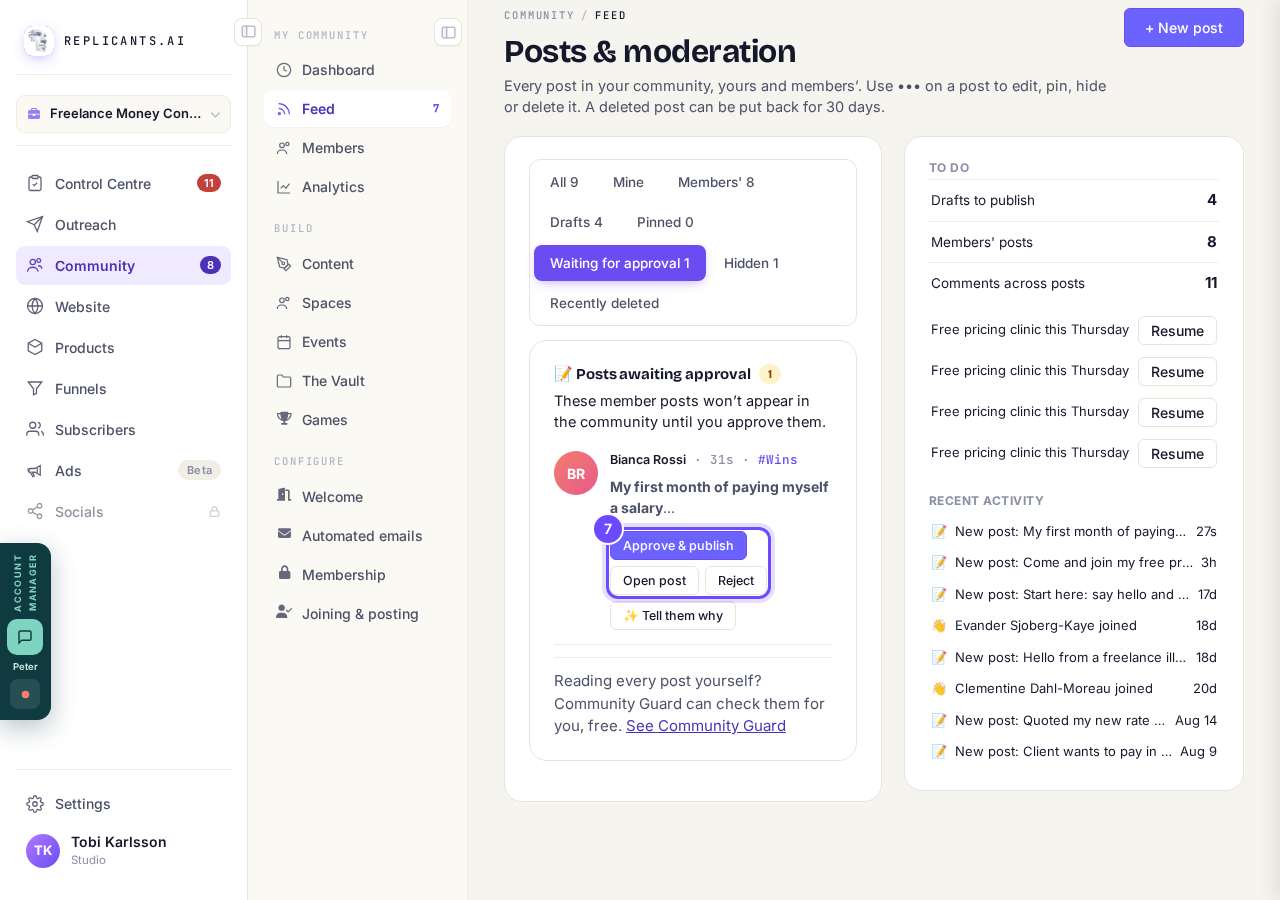
Approve & publish, Open post and Reject.
Press Hidden
It lists every post you hid with ••• and Hide from members. Each one says HIDDEN: only the author still sees it. To put one back, press ••• on it, then Show to members again.
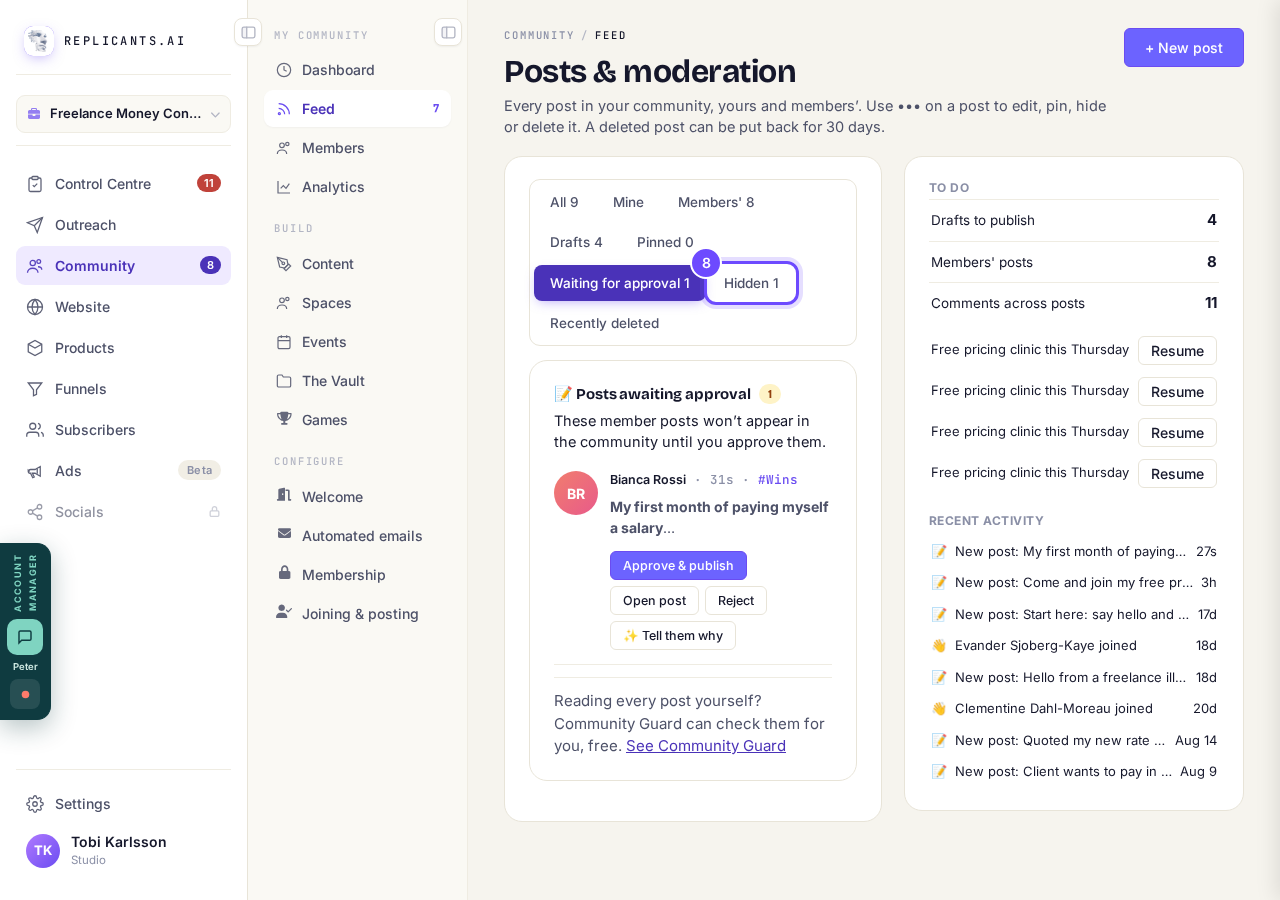
Hidden, with its count.
Press Tell them why
It is on a member's post that is hidden or waiting for approval, in the Hidden list and under Waiting for approval. It opens a box where Maya writes a kind private message to the member, from you.
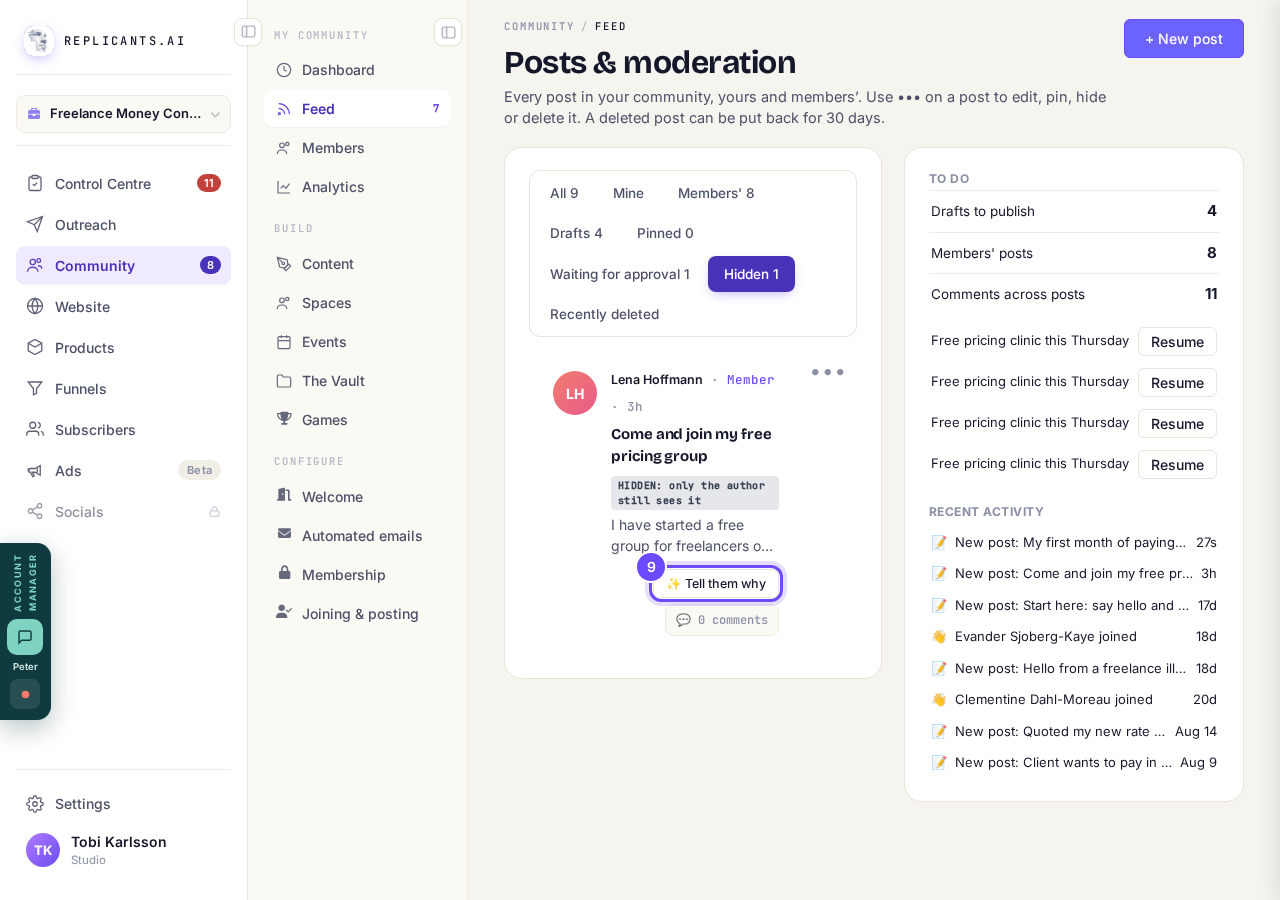
Tell them why, on a hidden post.
Say why, then press Write the message
The box asks Why did you hide this post?, or Why are you holding this post back? for one that is waiting. Type a few words, or press Speak and say them.
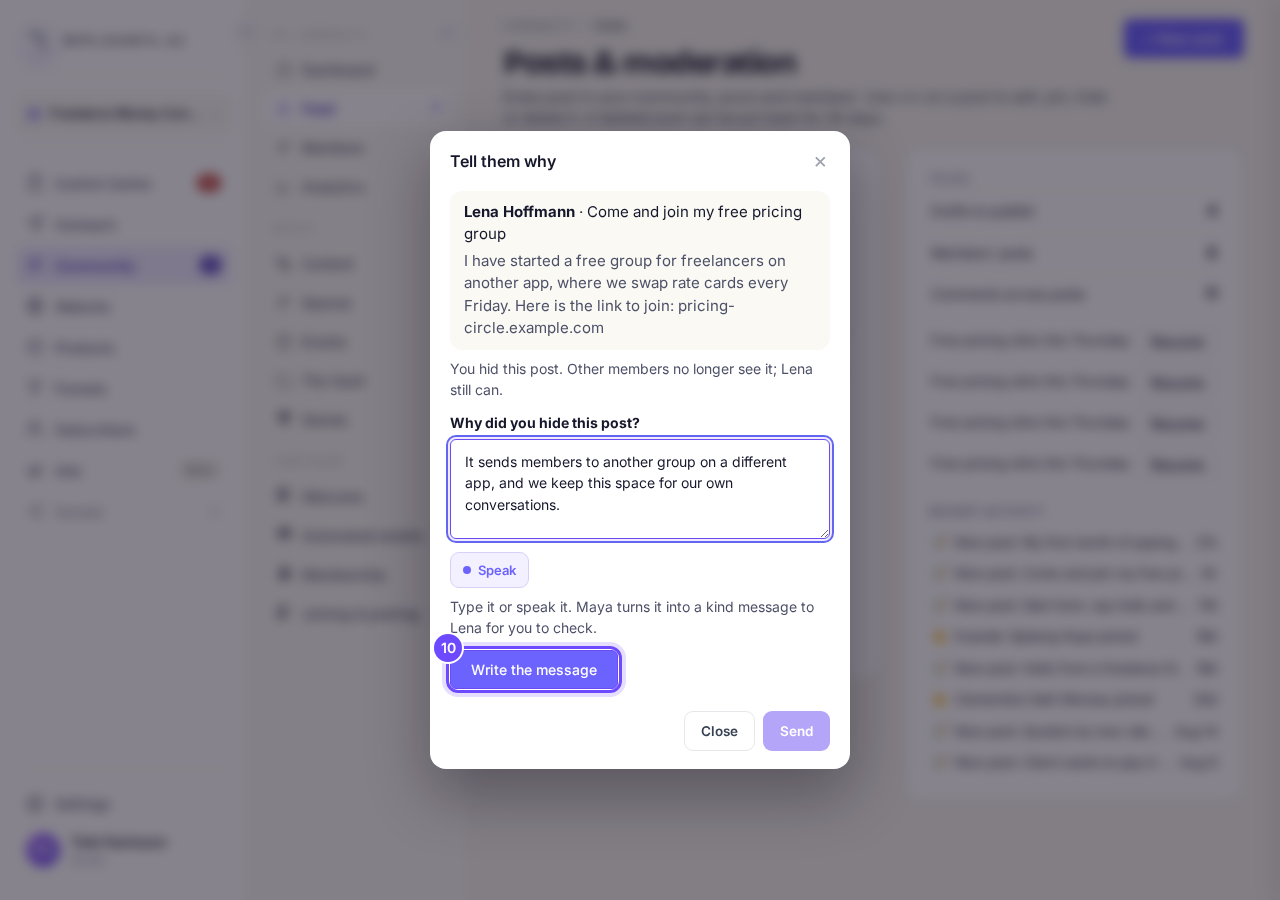
Your reason, then Write the message.
Read Maya's message and change it if you like
Change the words in the box yourself, or write what you would like different under Ask Maya to change it, for example warmer or shorter, and press Rewrite it. It goes to the member as a private message from you.
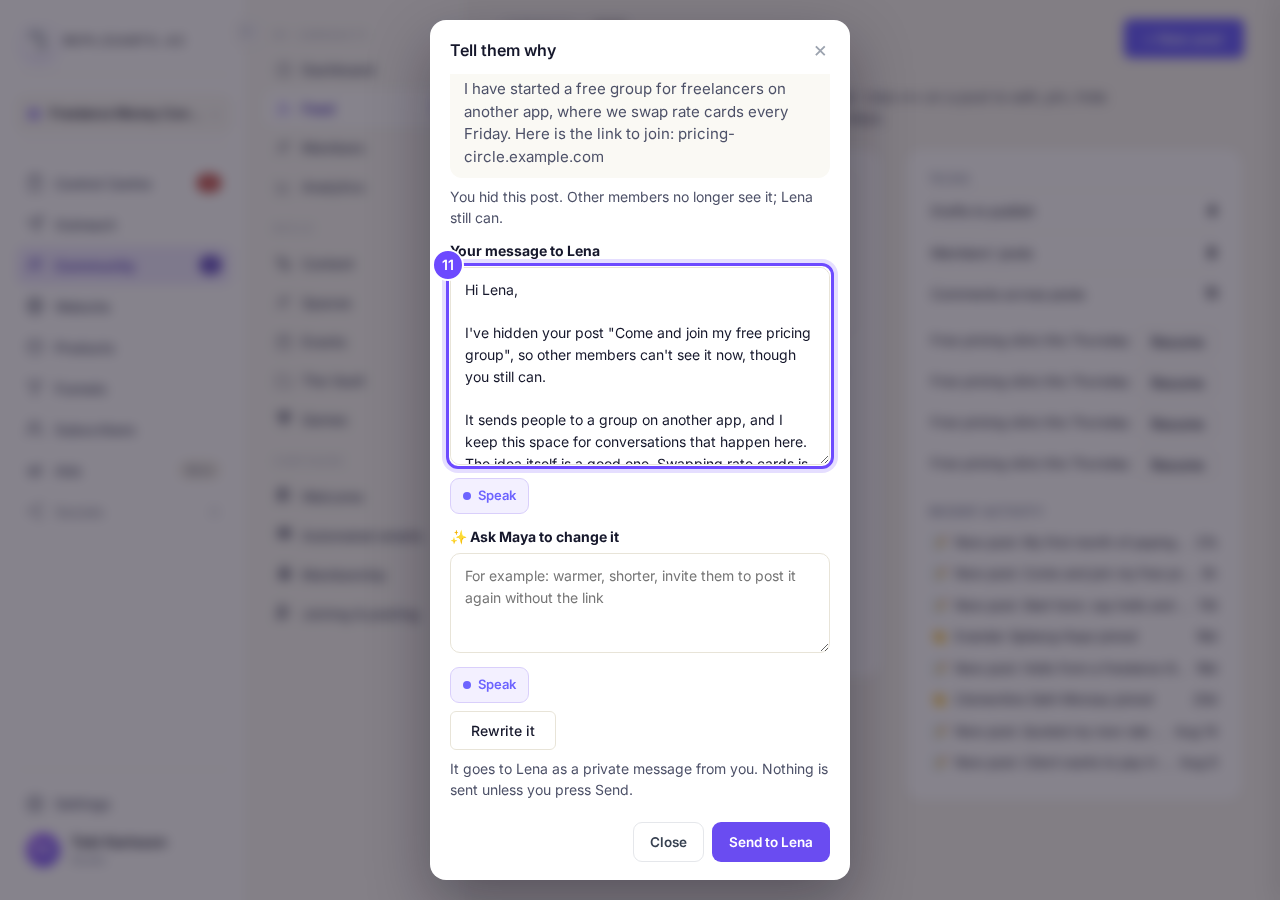
Maya's message to Lena, ready to check.
Press Send to Lena when it reads right
The button says the member's first name. Nothing is sent until you press it, and Close shuts the box with nothing sent. When it has gone, a message says Sent to Lena. It is in your Messages.
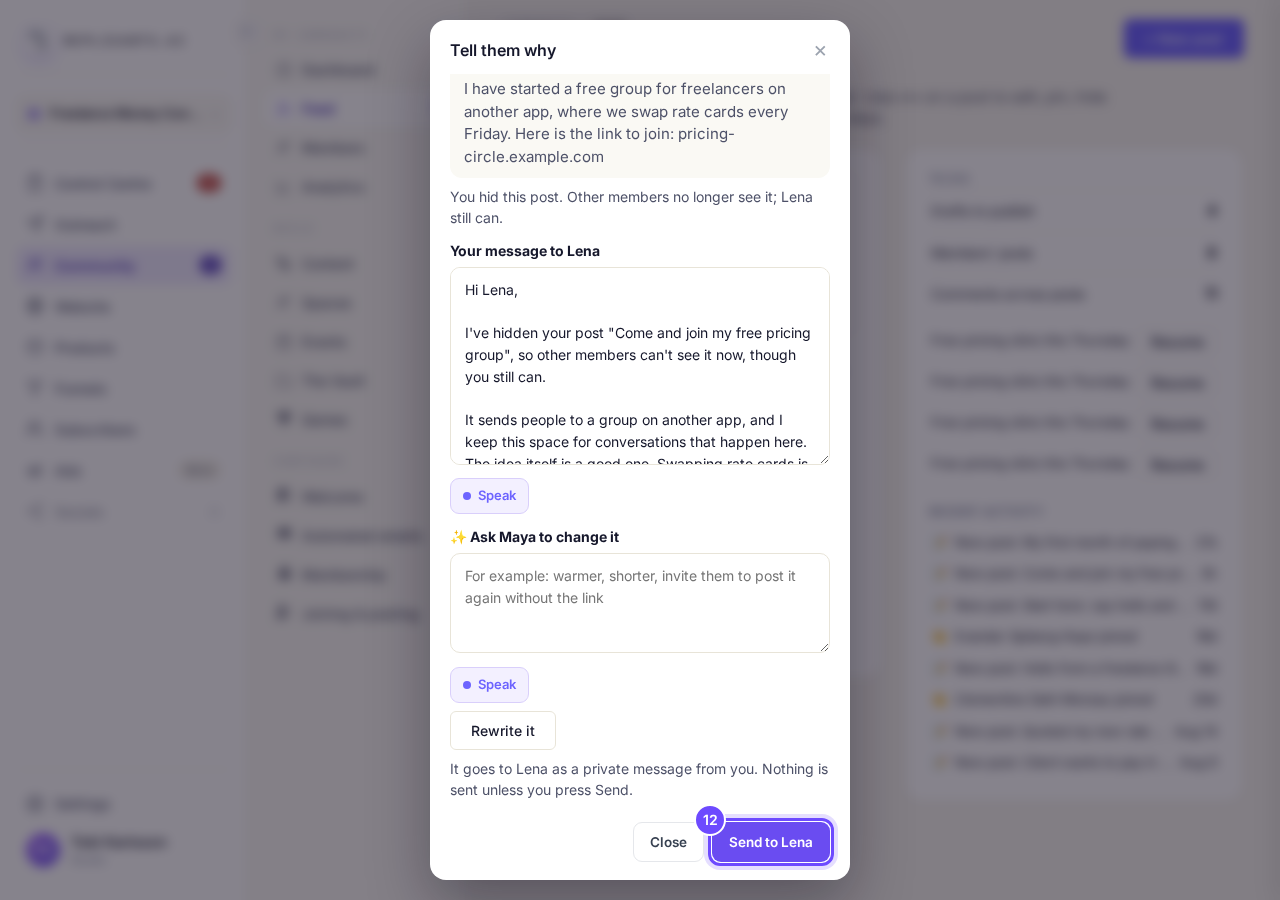
Send to Lena, at the bottom of the box.


Can I check comments before they go up?
Related articles
Can I approve new members before they get into my community?
Yes. Switch on approval and anyone who asks to join waits in a Requests list in Members until you let them in, the way a private LinkedIn or Facebook group works. People you invite, and people who pay, still go straight in. About five minutes to set up.
Can I change a member's post before I approve it?
No. A post waiting for your approval can only be approved or rejected, so you cannot change a member's words. If a few words need changing, approve it and add a comment, or message the member and reject it.
Can I check comments before they go up?
Turn on comment approval and every member comment waits for you. It's a separate switch from the one for posts.