
How do I charge for my community?
You can, and you can give people a free run first. It is one screen, called Membership. What you set there is saved as a draft, so nobody is charged and nothing your members see changes until you press Publish. About ten minutes.
Updated 2 October 2026
Open my payment settings
Open Membership
Press the button below. It opens Community, and Membership is in the list on the left under the grey heading CONFIGURE, with a small padlock beside the word.
The top of the screen tells you where you stand today. On a community that has never charged anyone it reads Right now, members meet Free.
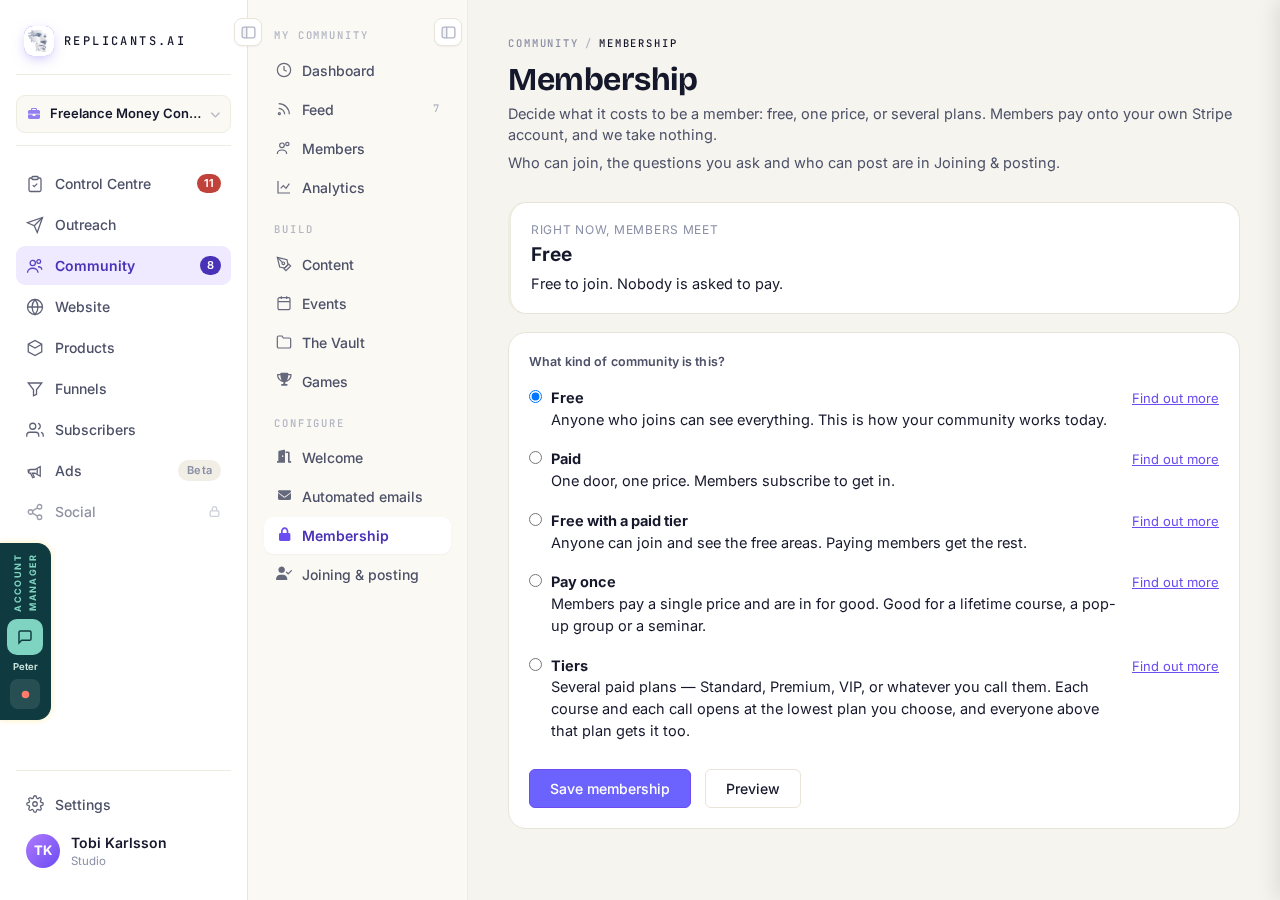
The Membership screen, showing what members meet today.
Open MembershipChoose how it charges
Five choices, and most people need only the first two. Free is how your community works today. Paid is one door and one price, and members subscribe to get in.
Free with a paid tier lets anyone join and read the open areas, and paying members get the rest. Pay once takes a single payment and they are in for good. Tiers is several paid plans at different prices.
Beside each one is Find out more, which draws what a visitor, a signed up member and a paying member would each see. If your community is already set up, press Edit first to open the choices.
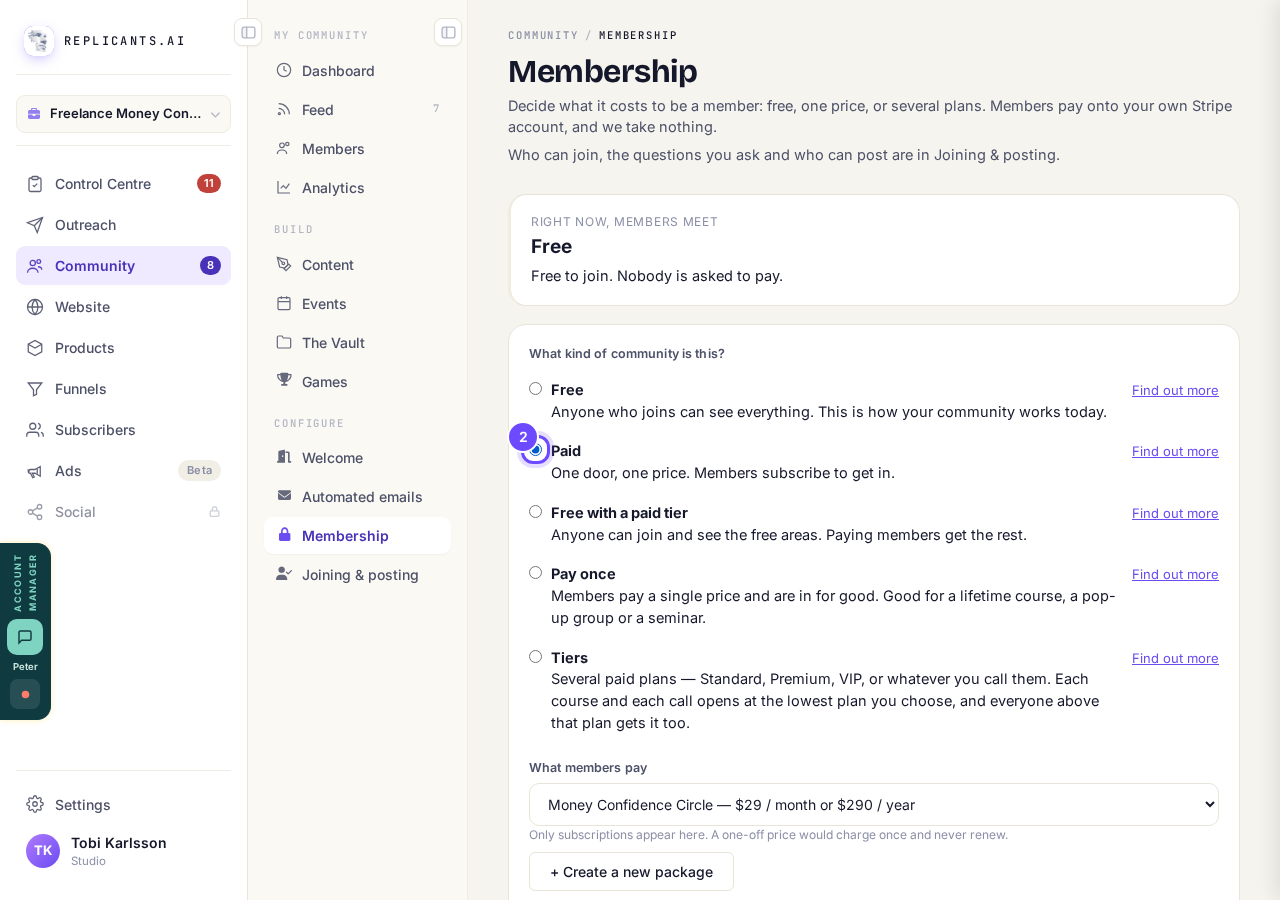
Paid is the second choice on the list.
Press + Create a new package and set the price
It sits under What members pay. Give it the name members will see at checkout, choose Monthly or Annual, and type the price. Press Create this package.
The screen keeps the kind you chose and picks your new package under What members pay, so there is nothing to set again.
Want a yearly price as well as a monthly one? Tick Do you want to offer an annual discount? The next page walks through it.
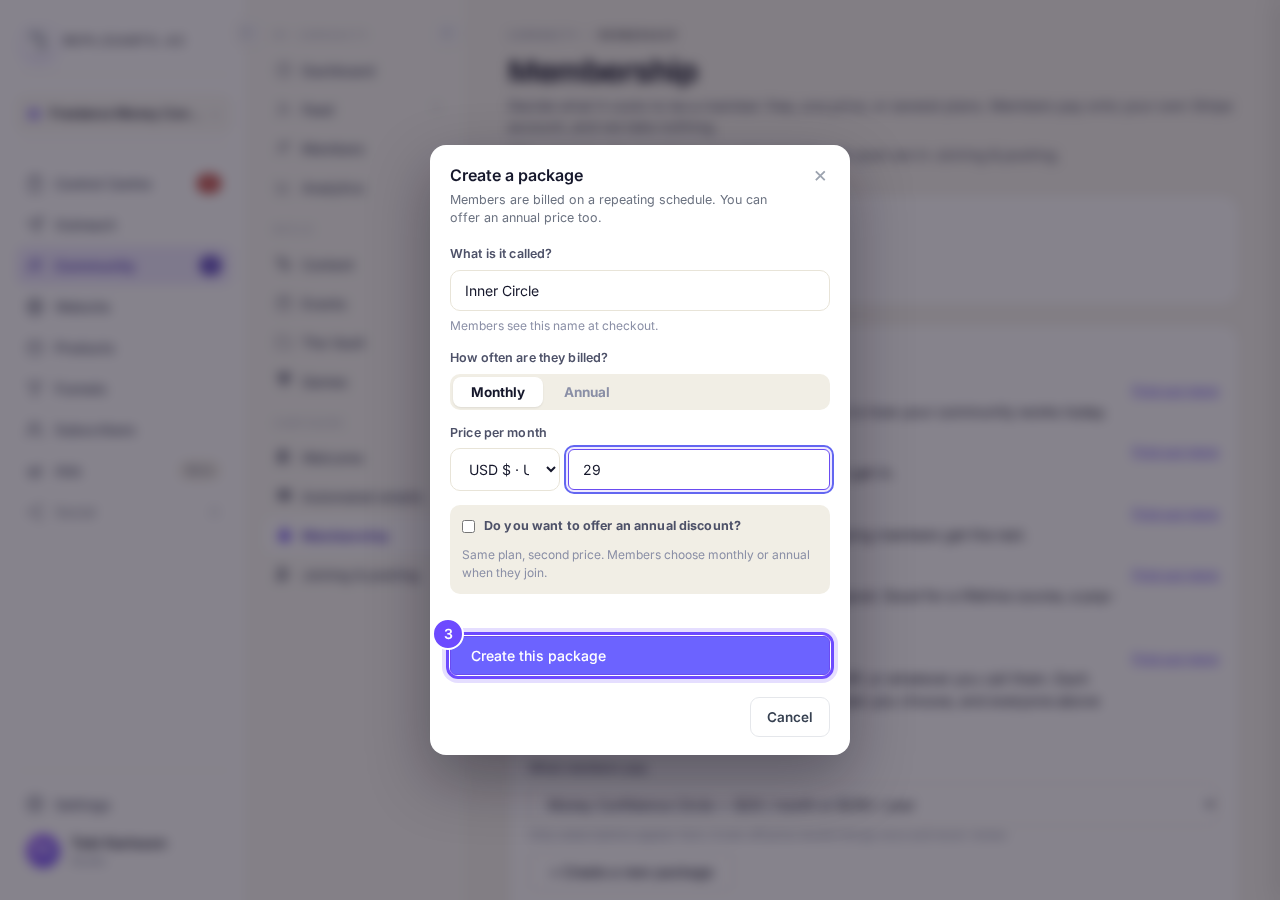
Name it, choose Monthly or Annual, and set the price.
Set the free trial
Free trial is a number of days. It arrives set to 7, and 0 means no trial at all.
Whatever you put in, the screen tells you in plain words what it means for a member. With 7 days, the first charge lands on day 8, and it renews from there.
A trial takes card details at the start and charges nothing on the day. Say that in your own words wherever you invite people.
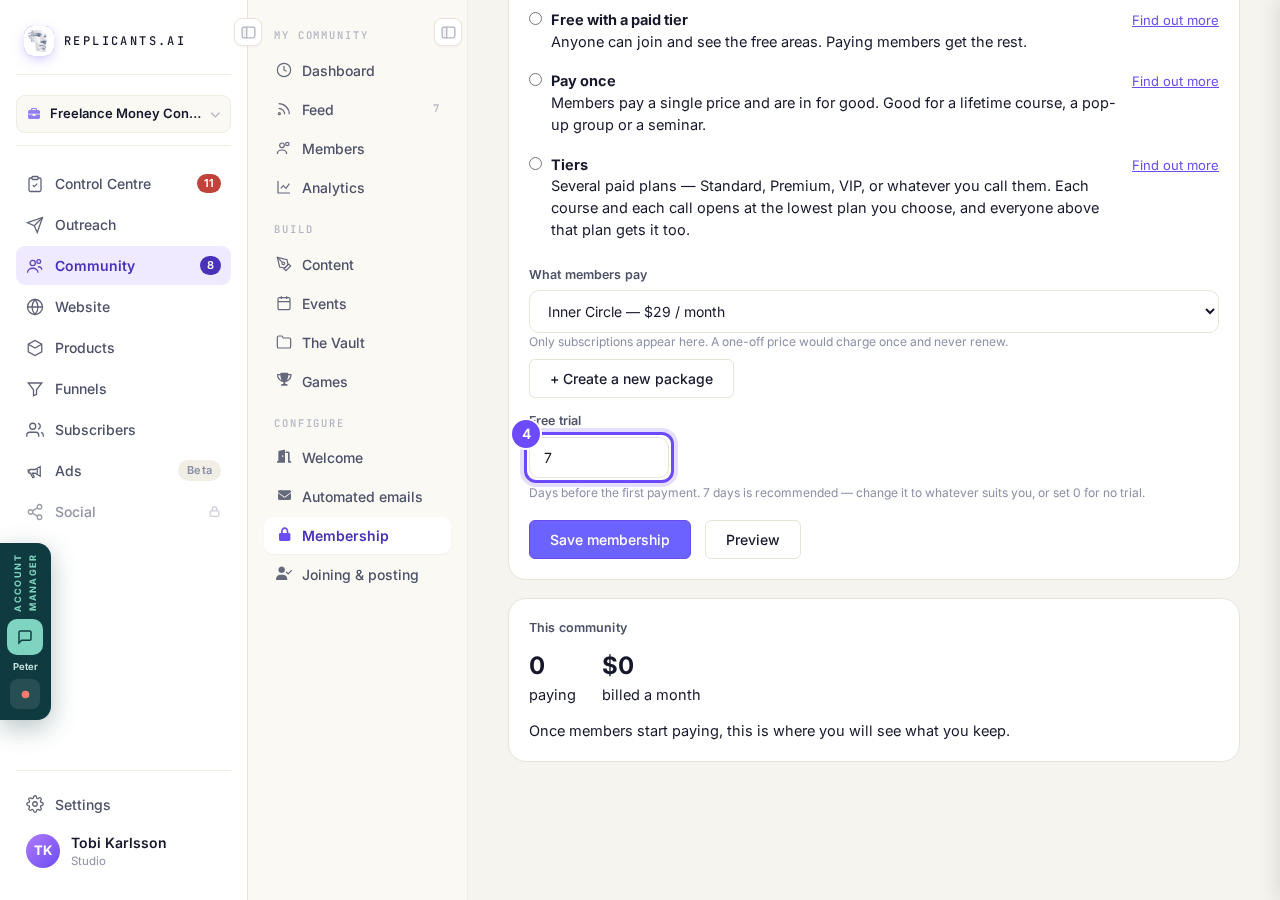
Free trial, in days. Seven to begin with, or zero for none.
Save it, look at it as a member would, then publish
Press Save membership. Nothing is live yet. The top of the screen now carries a second block reading Saved as a draft, and Members will not see this until you publish it.
If the screen asks what happens to the members you already have, it starts on They keep their access, which asks only new members to pay. The other choice shuts everyone out until they pay, and the screen says so in red.
Under the draft is See it as a member does, with three buttons: View as a guest, As a registered member, As a paying member. Each opens your community in a new window as a simulation that cannot take a payment.
When it reads the way you want it, press Publish these changes and confirm.
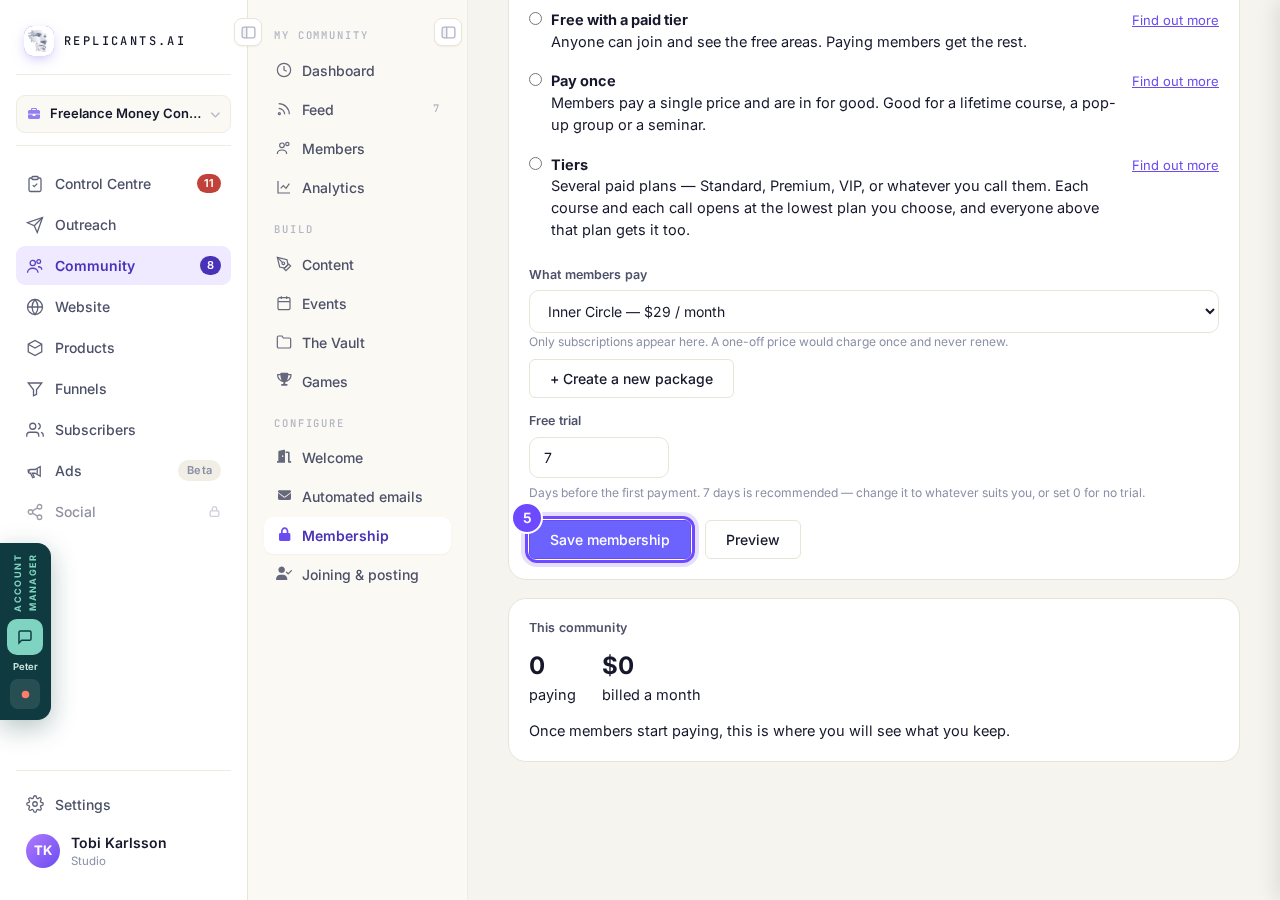
Save membership keeps it as a draft until you publish.


Once people are actually paying you, the price and the trial are still yours to change, but changing how the community charges is not something the screen will let you do alone. It asks you to contact support instead, so that nobody's billing is disturbed halfway through a month.
The amber STRIPE TEST MODE pill turns to STRIPE LIVE only when two separate things are true: this community is published, and your Stripe account itself is finished and live. If you have published and it still says test, what is left to finish is inside Stripe rather than here, and no real money can arrive until it is done.
How do I offer a yearly price on my paid community?
Related articles
Can I approve new members before they get into my community?
Yes. Switch on approval and anyone who asks to join waits in a Requests list in Members until you let them in, the way a private LinkedIn or Facebook group works. People you invite, and people who pay, still go straight in. About five minutes to set up.
Can I change a member's post before I approve it?
No. A post waiting for your approval can only be approved or rejected, so you cannot change a member's words. If a few words need changing, approve it and add a comment, or message the member and reject it.
Can I check comments before they go up?
Turn on comment approval and every member comment waits for you. It's a separate switch from the one for posts.