
How do I set up an email sequence?
A sequence sends emails one after another to everyone who gets a tag. Write them, approve them, then switch it on.
Updated 1 October 2026
Press + New sequence
Open Subscribers, then Sequences. Press + New sequence, type a name and press Create sequence.
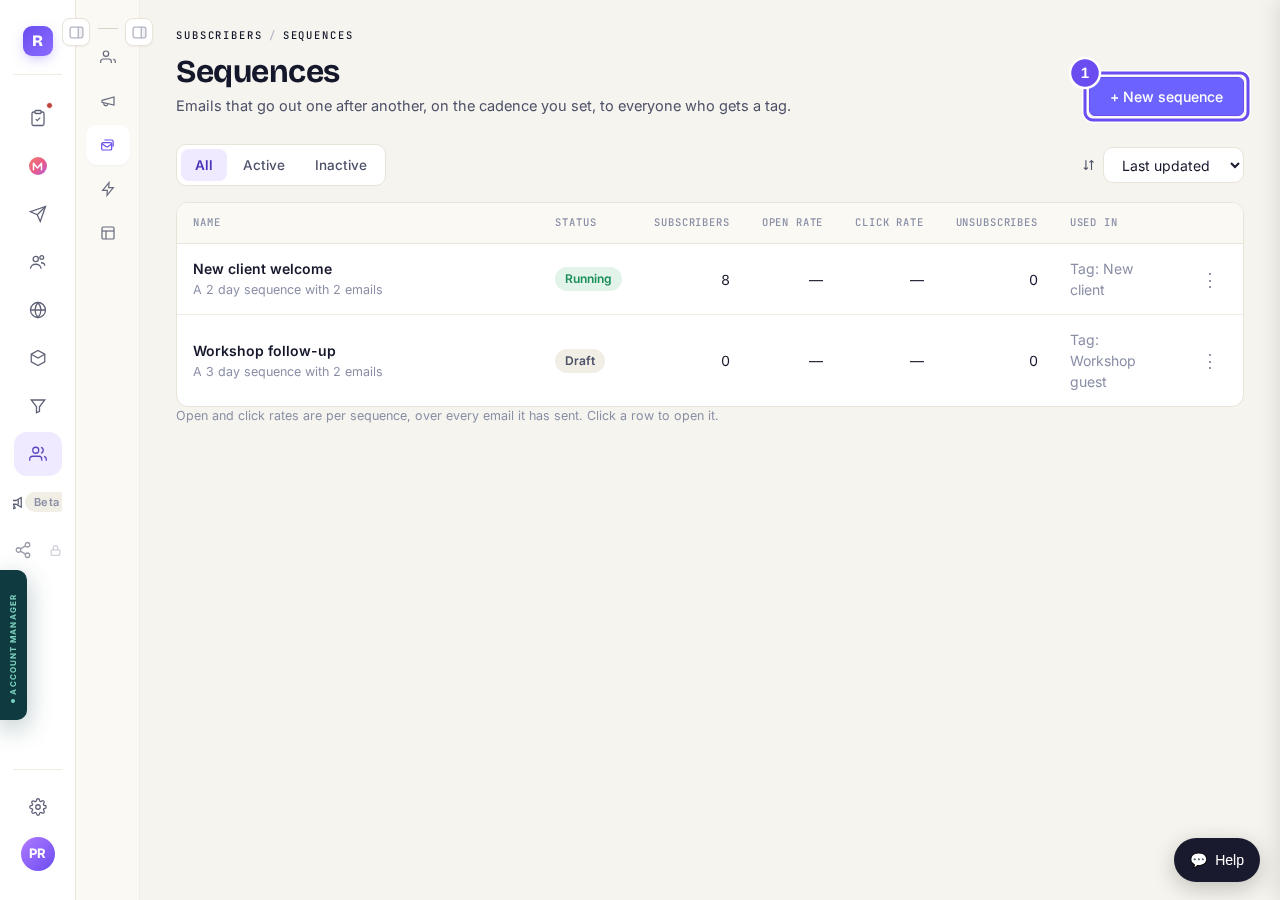
Your sequences, and the + New sequence button.
Add and write each email
Press + Add email. Type the subject and the words, then choose when it goes under Send this email.
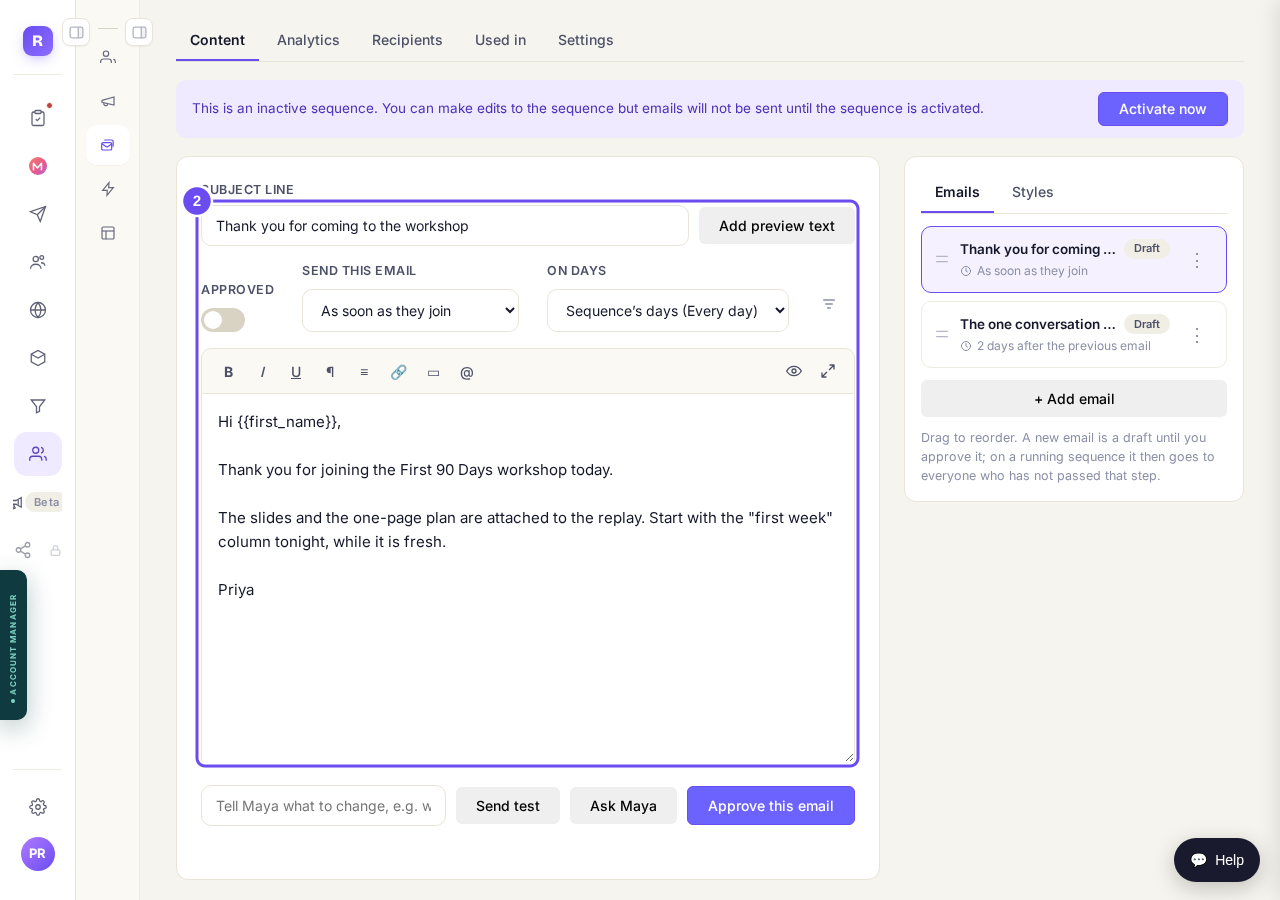
An email, with its subject and its words.
Send a test, then approve it
Press Send test to get it in your own inbox. When it reads right, press Approve this email.

Send test and Approve this email, under each email.
Choose who joins
Press the Settings tab beside Content. Under Who joins, choose the tag, then press Save settings.
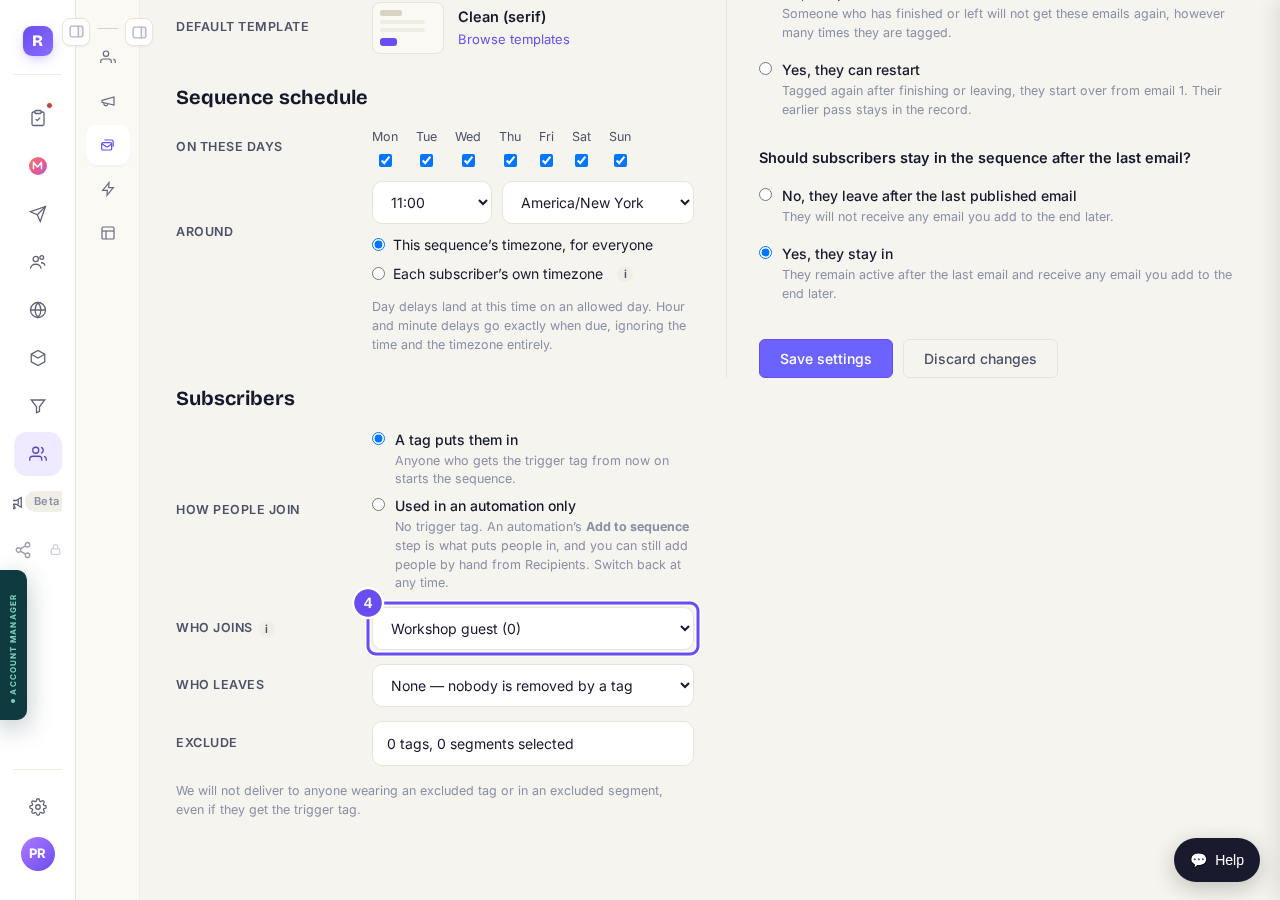
The tag that puts people in.
Press Activate now
It's at the top of the sequence. Only people who get the tag from now on join. Anyone who already has it isn't added.
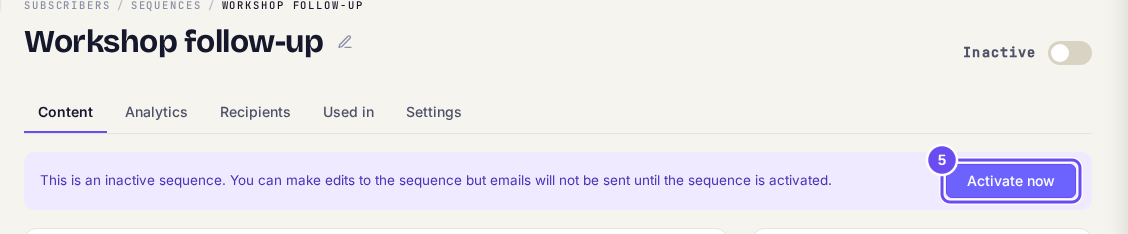
Activate now, on a sequence that's still off.
See what's about to go out
Point at the small chart beside an email's timing, or tap it on a phone. It shows how many people it reaches in the next 48 hours.
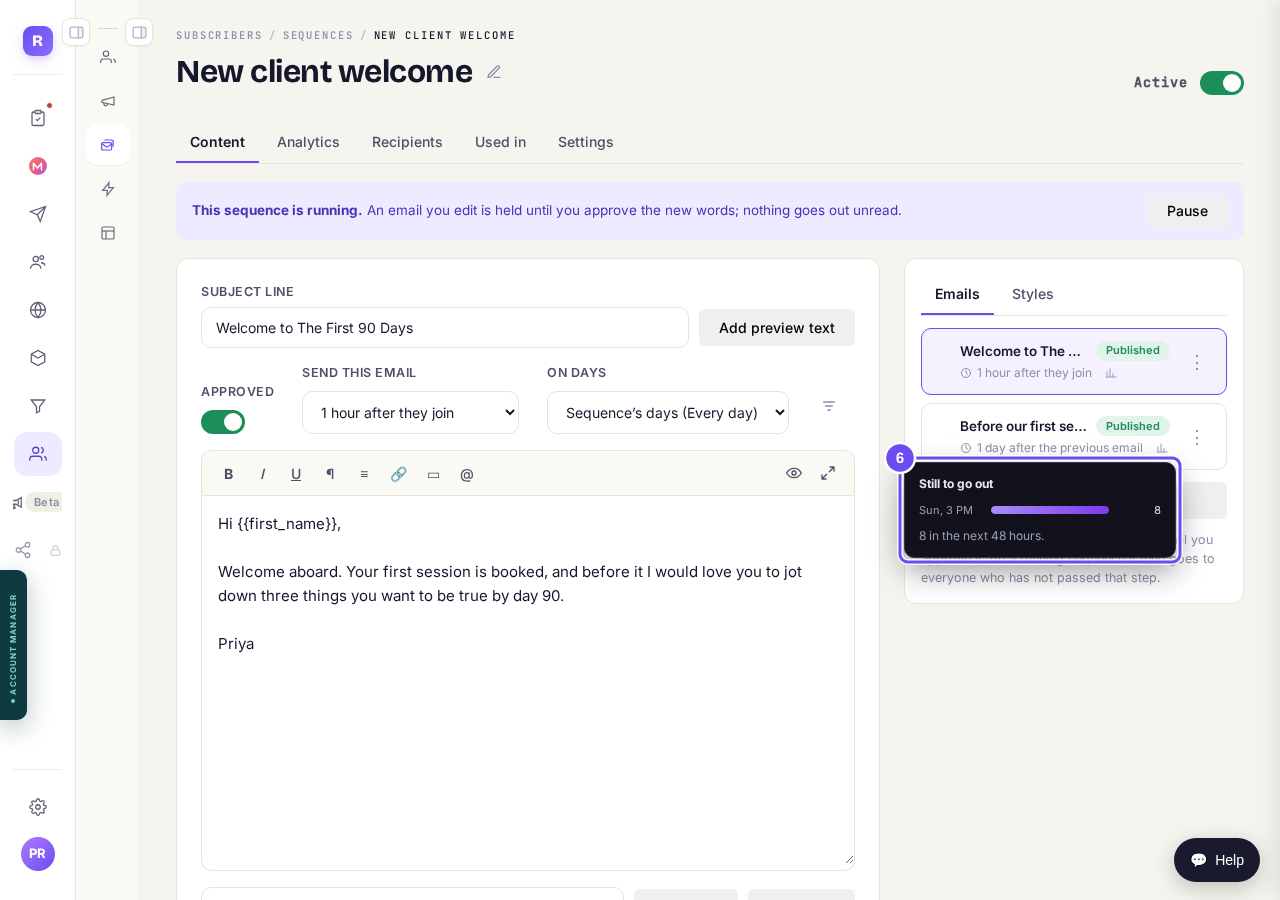
Still to go out: 8 people, Sunday at 3 PM.


How do I create a tag and put it on people?
Related articles
How do I choose what time of day my emails arrive?
When you send a broadcast you can spread it over a few hours, and let each person get it at the time they usually read their email. It is all on the last screen, **Schedule**.
How do I create a new tag?
A tag is a label you put on people so you can find them again. You make one by ticking the people it belongs on and naming it, in Subscribers, on the Contacts page.
How do I delete a contact?
Tick them on Contacts, press Delete, then type DELETE to confirm. Delete can't be undone. To hide someone and keep their details, Archive them instead.